
The bottleneck creators hit when moving from manual editing to AI
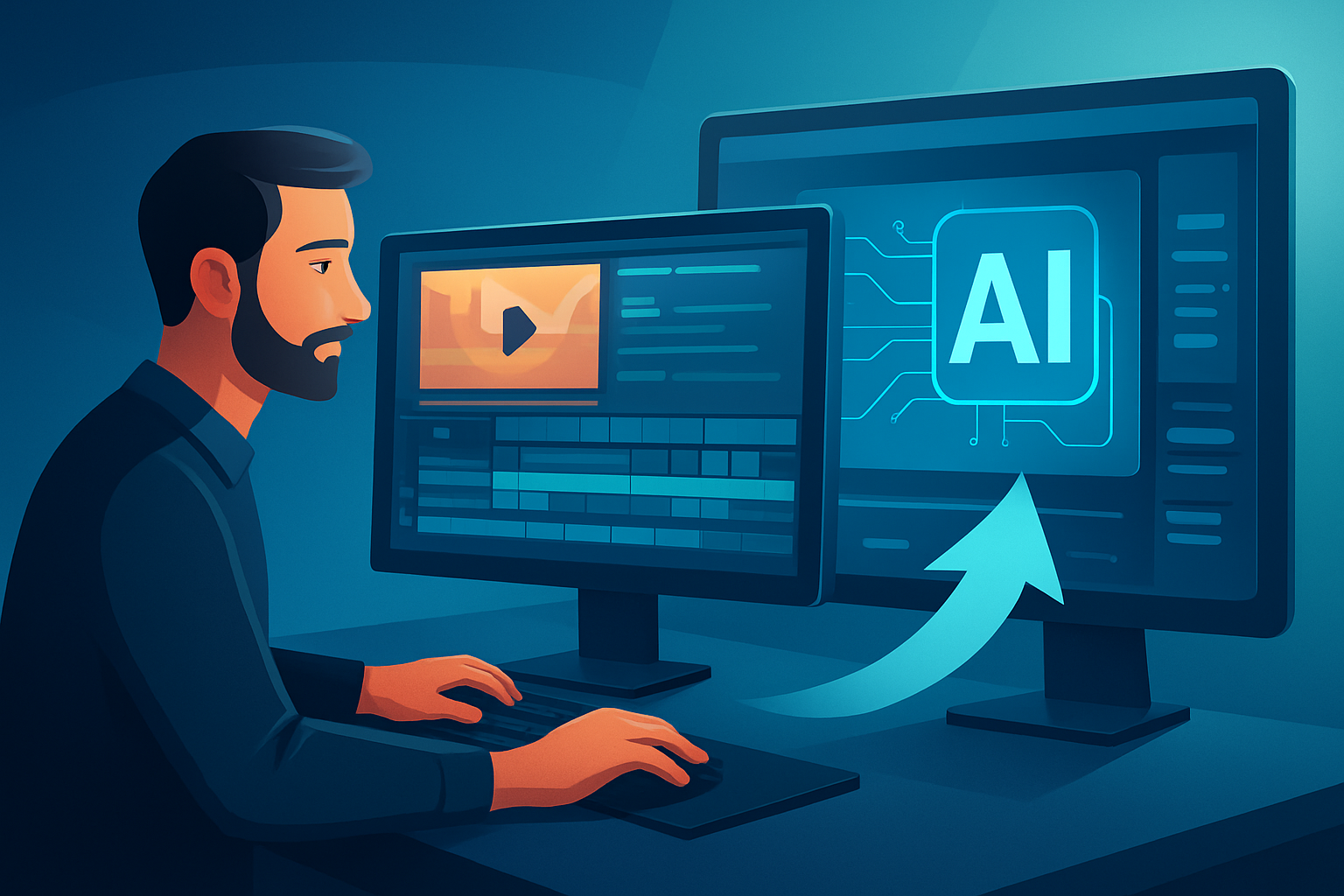
You want fewer repetitive cuts, faster first drafts, and consistent publish-ready output. Instead you get fractured toolchains, messy asset sprawl, and AI outputs that stop at a raw draft. The real bottleneck is not "can AI edit?" but "how do I build a repeatable system that turns source material into finished, platform-ready videos with minimal tool switching?" This article gives a practical, step-by-step workflow to do exactly that.
Step-by-step workflow: manual → AI-driven production
Define the deliverable and constraints
- Pick the format (short-form ad, explainer, repurpose clip), target platform, length, and primary hook.
- Decide aspect ratios you'll need (portrait for TikTok, landscape for YouTube).
Gather and organize source material
- Collect footage, scripts, audio, and brand assets.
- If you work with client media, organize it into folders and name files clearly before ingest.
Ingest into a persistent workspace
- Import everything into a single local project workspace so assets are reusable and versioned.
- Use a system that stores projects and generated assets locally to preserve history and speed repeat work.
Choose the right AI project type
- If you have raw footage, start an Auto Edit Video project to generate a draft from clips.
- If you have only a script, use Text-to-Video.
- For avatar-driven or dialogue-first workflows, start Avatar or Podcast projects as appropriate.
Generate a first draft fast
- Produce a rough cut with AI to establish timing, hook placement, and rough B-roll.
- Treat this as a scaffolding: expect to refine, not to publish immediately.
Apply finishing controls and polish
- Replace or refine AI-selected B-roll, refine cuts, add subtitles, title hooks, overlays, and borders.
- Use auto zoom, face tracking, freeze-frame, and basic color tweaks to tighten visuals.
- Adjust audio levels, add music and sound effects, and finalize volume mix.
Create publishing-adjacent assets
- Generate platform-appropriate thumbnails, export square/portrait/landscape previews, and store them alongside the project.
- Design subtitle styles and hooks for each channel.
Export and iterate
- Batch-export required ratios and deliverables.
- Save the entire project and assets in the workspace so you can repeat the pattern for future episodes or deliverables.
Capture lessons and template the flow
- Save successful layouts, subtitle styles, and overlay stacks as templates for repeatable output.
Tools needed
- A desktop AI video editor that stores projects locally and supports both AI generation and finishing controls (so you can move from draft to publish-ready inside one workspace).
- Asset management: a local library to store footage, images, audio, and generated thumbnails so assets are reusable.
- Basic audio tools: royalty-free music library and simple level/mix controls.
- A thumbnail/design tool or a built-in thumbnail generator that integrates with your workflow.
- Project management notes: a simple checklist to track versions and platform-specific exports.
Shorz fits the desktop editor requirement: it’s a Windows desktop AI video production suite with Auto Edit Video, Text-to-Video, Avatar, and Podcast project types, a local asset library, finishing controls (subtitles, B-roll, overlays), visual polish tools (auto zoom, face tracking, freeze frames), and multi-ratio preview/export support.
For practical reading on how AI fits into your control strategy, see How to Use AI Video Editors Without Losing Control. To keep the system efficient, audit it regularly: How to Audit Your AI Video Editor Workflow. If you need an intro to what AI editors do, start here: What Is an AI Video Editor?.
Common mistakes to avoid
- Treating AI output as publish-ready. Use AI for first drafts, then finish with human judgment.
- Importing messy or misnamed assets. Clean import saves hours later.
- Ignoring aspect ratios until the end. Build multiple ratios into the project and preview early.
- Repeating manual patterns instead of templating them. If a hook format works, save it.
- Losing track of versions because projects live in multiple tools. Keep a single persistent workspace per deliverable.
Optimization tips (practical, repeatable)
- Standardize a deliverable template: hooks, subtitle style, overlay pack, and export presets.
- Batch-process similar clips (e.g., 5 episode clips that need the same thumbnail treatment).
- Reuse generated thumbnails and assets from your local library to avoid re-creating creative elements.
- Use preview modes (landscape/portrait/square) frequently during polishing to catch composition issues early.
- Keep a "starter kit" of B-roll, music stems, and overlay GIFs in your asset library for quick swaps.
Shorz’s YouTube and TikTok helpers plus URL-based ingestion simplify grabbing reference videos and storing them in your local library, reducing friction during this optimization stage.
How to scale the workflow
- Turn repeatable projects into templates inside your workspace so new episodes or ads start with the same structure.
- Build an asset taxonomy (hooks, b-roll, thumbnails, music) inside your local library so anyone on the team finds assets fast.
- Parallelize work: one person prepares assets and scripts while another runs AI first-draft generation inside the same project pattern.
- Measure throughput not by raw AI speed but by time from source → publish-ready. Use consistent export presets to reduce QA cycles.
- For agencies and ops, codify templates per client so deliverables are consistent and faster to produce.
Because projects and assets are stored locally and persist between runs, tools that emphasize reusable libraries and cached assets compress the repeatable parts of production.
Where Shorz reduces friction in this workflow
- Workflow compression: Shorz helps move from source material to publish-ready video faster inside one persistent workspace.
- Fewer tools: AI generation + finishing controls in the same app reduces tool switching.
- Faster first drafts: Auto Edit Video and Text-to-Video accelerate draft creation so human time focuses on polish.
- Reusable assets: My Assets stores videos, generated thumbnails, images, and audio for repeatable output.
- Platform fit: Multi-ratio previews and YouTube/TikTok helpers make platform-specific QA straightforward.
- Publishing-adjacent assets: Thumbnail generation and subtitle systems keep publishing assets bundled with the project.
- Visual finishing: Auto zoom, face tracking, freeze frames, overlays, and basic color controls let you finish rather than stop at a raw AI draft.
FAQ
Q: Will AI take control away from me? A: Not if you use a system that combines AI generation with finishing controls. Generate drafts, then apply human-led polish and brand rules. See practical advice in How to Use AI Video Editors Without Losing Control.
Q: Can I repurpose long-form video into multiple short-form clips? A: Yes — ingest the long-form source, generate first-pass cuts, then refine and export multiple ratios and thumbails from the same project.
Q: How do I keep client footage secure? A: Use local workspaces, consistent file naming, and a controlled asset library. For more on securing client media in AI workflows, consult How to Secure Client Footage in AI Workflows.
Q: How do I check that my AI workflow remains efficient? A: Audit the pipeline regularly—time-to-first-draft, polish time, and export time are good KPIs. For guidance on auditing, see How to Audit Your AI Video Editor Workflow.
Next step (CTA)
If you want a desktop workflow that combines AI drafts with real finishing controls and local asset reuse, explore a platform designed around short-form creator, ad, and repurposing workflows: What Is an AI Video Editor?.