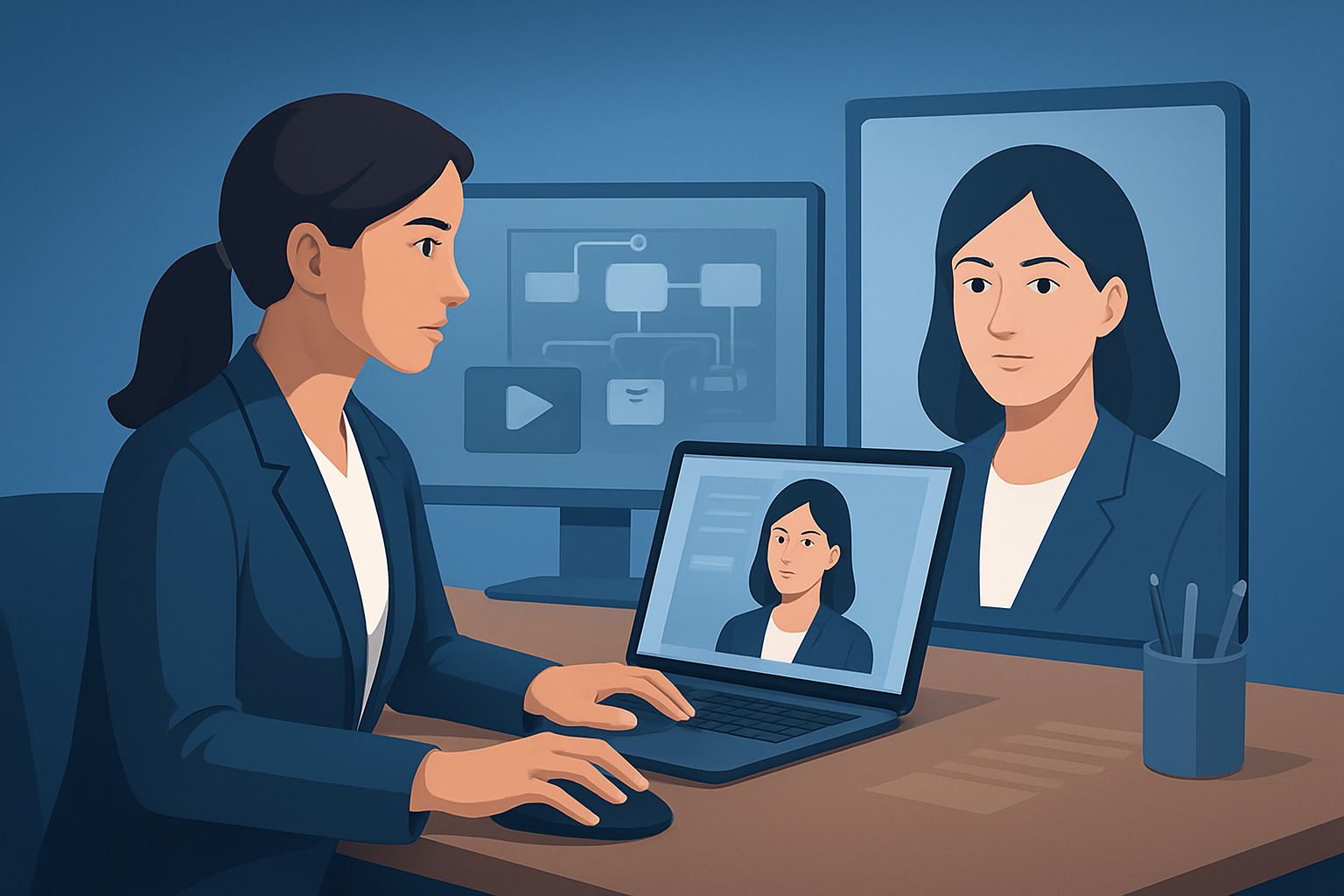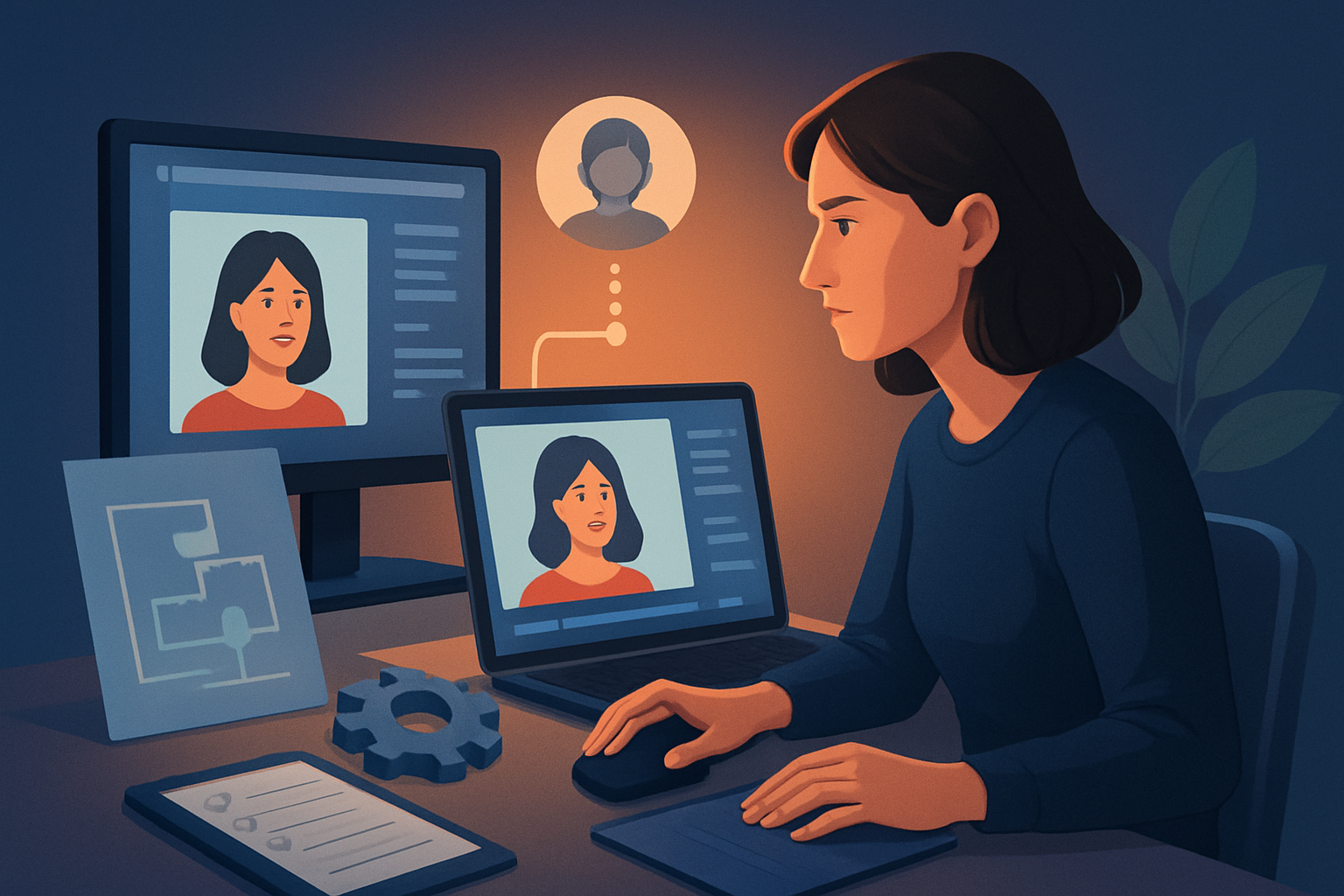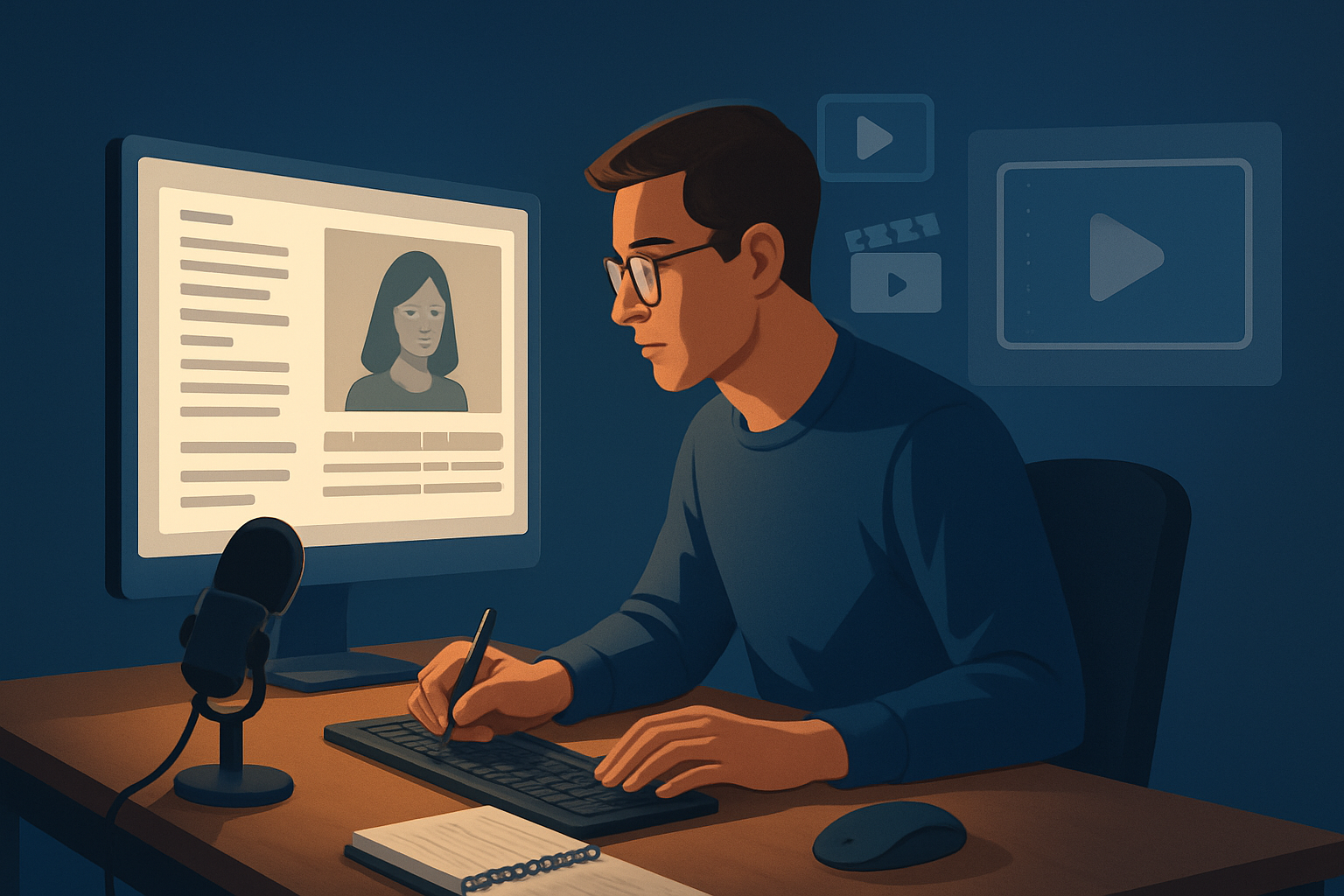

The bottleneck: scripts sit idle while videos take forever
Educators can write excellent course scripts, but turning them into polished lesson videos usually stalls at a handful of operational pain points: re-recording narration, hunting for visuals, stitching subtitles and hooks, and switching between multiple tools for edits, thumbnails, and aspect ratios. The result is slow course launches and inconsistent lesson quality.
This guide gives a step-by-step workflow to convert course scripts into publish-ready lesson videos at scale—plus tools, common mistakes, optimization tips, and where a Windows desktop AI editor like Shorz removes friction so you can move from script to first draft faster and repeatably.
Step-by-step workflow
Break the script into teachable chunks
- Split long scripts into 3–7 minute lesson segments or micro-lessons (one concept per clip). Name each segment by objective.
Create a shot-by-shot script map
- For each segment, write a brief scene list: narration text, desired visual (slide, diagram, screencast, B-roll), and a hook/title for the opening 3–7 seconds.
Produce or select narration
- Option A: Record clean audio with a decent mic and quiet room.
- Option B: Use a high-quality synthetic voice when needed (preview before committing to pacing).
Build visuals and style references
- Gather reference images, color palettes, and any slides or diagrams. These stabilize visual identity across lessons.
Assemble a first draft
- Import the script, narration (or use a selected voice), and assets into your editor to generate a rough cut that lines up narration with visuals and subtitles.
Apply finishing touches
- Add title hooks, subtitles, b-roll, callout overlays, and visual polish (auto zoom, freeze frames, basic color adjustments).
Export multi-aspect versions
- Produce landscape for LMS/YouTube, portrait for short-form distribution, and square for social—each with tailored hooks and captions.
Create supporting assets
- Generate thumbnails, chapter markers, and a short description for the lesson page.
Save as a reusable template
- Capture the scene structure, styles, and voice choices as a template for future lessons.
Tools you’ll need
- A script editor (Google Docs, Word) for collaboration and versioning.
- A microphone and simple recording setup for any on-voice narration.
- Slide or diagram software (PowerPoint, Keynote, Figma) for visual assets.
- Stock footage/image sources for B-roll and diagrams.
- A desktop video editor that supports script-driven generation and persistent asset libraries. Shorz (Windows desktop) is an option tailored to text-to-video, avatar, and auto-edit workflows.
- An LMS or video hosting platform for publishing and tracking student engagement.
For how this workflow translates into short-form or ad-style clips, see How to Turn Scripts Into Shorts With AI. For script-driven avatar lessons, see How to Turn Scripts Into Avatar Ads.
Mistakes to avoid
- Trying to fit an entire lesson into one long video—chunking increases retention and reusability.
- Skipping style references—without consistent visuals your course looks disjointed.
- Ignoring narration pacing—rush through concepts and learners will drop off.
- Generating final assets without reviewing subtitles and hooks—automated drafts need finishing.
- Repeating manual steps for each lesson instead of building templates.
Optimization tips for educators
- Start each segment with a single, measurable learning objective and a one-line hook.
- Use style reference images to maintain consistent visual identity across lessons—this helps generated scenes match your branding.
- Place visual examples on screen the moment a concept is introduced; use freeze frames or auto zoom to spotlight details.
- Keep voiceover sentences short; treat each sentence like a scene cut for better captioning.
- Design subtitles for readability: short lines, high-contrast background overlays, and consistent placement.
- Export multiple aspect ratios with specific hooks/CTAs for each platform rather than cropping a single master.
For adapting course scripts into persuasive sales or enrollment videos, check How to Turn Sales Scripts Into Videos.
How to scale this workflow
- Build and reuse templates: scene order, subtitle style, thumbnail layout, and title hooks can be saved and applied per-module.
- Centralize a local asset library of diagrams, B-roll, and icons so instructors don’t search every time.
- Batch narration: record or generate audio for multiple lessons in one session to save setup time.
- Use consistent voice choices or avatars for brand continuity across an entire course.
- Export in batches for all lessons and aspect ratios in one pass where your editor supports queued outputs.
Shorz’s persistent local projects and My Assets system are built to support repeatable assets and cached project history, which makes batch work and template reuse practical on a Windows workstation.
Where Shorz reduces friction
- One workspace for the full script-to-video flow: Shorz combines Text-to-Video, Avatar, Auto Edit Video, and Podcast project types so you can start from scripts, uploaded audio, or footage without moving between unrelated apps.
- Faster first drafts: Text-to-Video builds scenes from typed scripts, with voice selection and narration preview—so you get a usable rough cut quickly.
- Reusable asset library: Import and store images, audio, and project assets locally in My Assets for consistent reuse across lessons.
- Finishing controls inside the same app: subtitles, title hooks, B-roll overlays, auto zoom, face tracking, freeze frame effects, and basic color controls let you refine automated drafts rather than exporting raw outputs to other tools.
- Publishing-ready outputs: preview and export in landscape, portrait, and square ratios and generate thumbnails alongside video files, reducing extra packaging steps.
Framing Shorz as a throughput and tool-sprawl reducer helps you get from script to publish-ready faster while maintaining consistent lesson quality.
FAQ
Q: Do I need recorded audio to use a script-to-video workflow? A: No. You can import recorded narration or use built-in voice selection and narration preview to generate audio—then tweak pacing and visuals to match.
Q: Can I make faceless lesson videos? A: Yes. The Text-to-Video and Avatar workflows support faceless educational explainers using generated visuals, slides, and avatars or voiceovers.
Q: How do I keep lessons consistent across modules? A: Save templates (title hooks, subtitle styles, color palettes, voice/avatars) and store reference images in your asset library for reuse.
Q: Will I still need a separate thumbnail tool? A: Shorz can generate and store thumbnails alongside project assets, so you don’t need a separate step for basic thumbnail production.
Q: Is this workflow suitable for short-form repurposing? A: Yes—because you can preview and export in portrait and square formats with tailored hooks for Shorts, Reels, and TikTok.
Actionable next step
If you want a complete, stepwise reference for turning scripts into video—templates, checklists, and export best practices—read the full guide: Script to Video: Complete Guide.
Ready to convert your next course script into a publish-ready lesson with fewer tools and faster first drafts? Start by batching three script segments, collecting style references, and importing them into your editor so you can produce repeatable, consistent lessons quickly.