
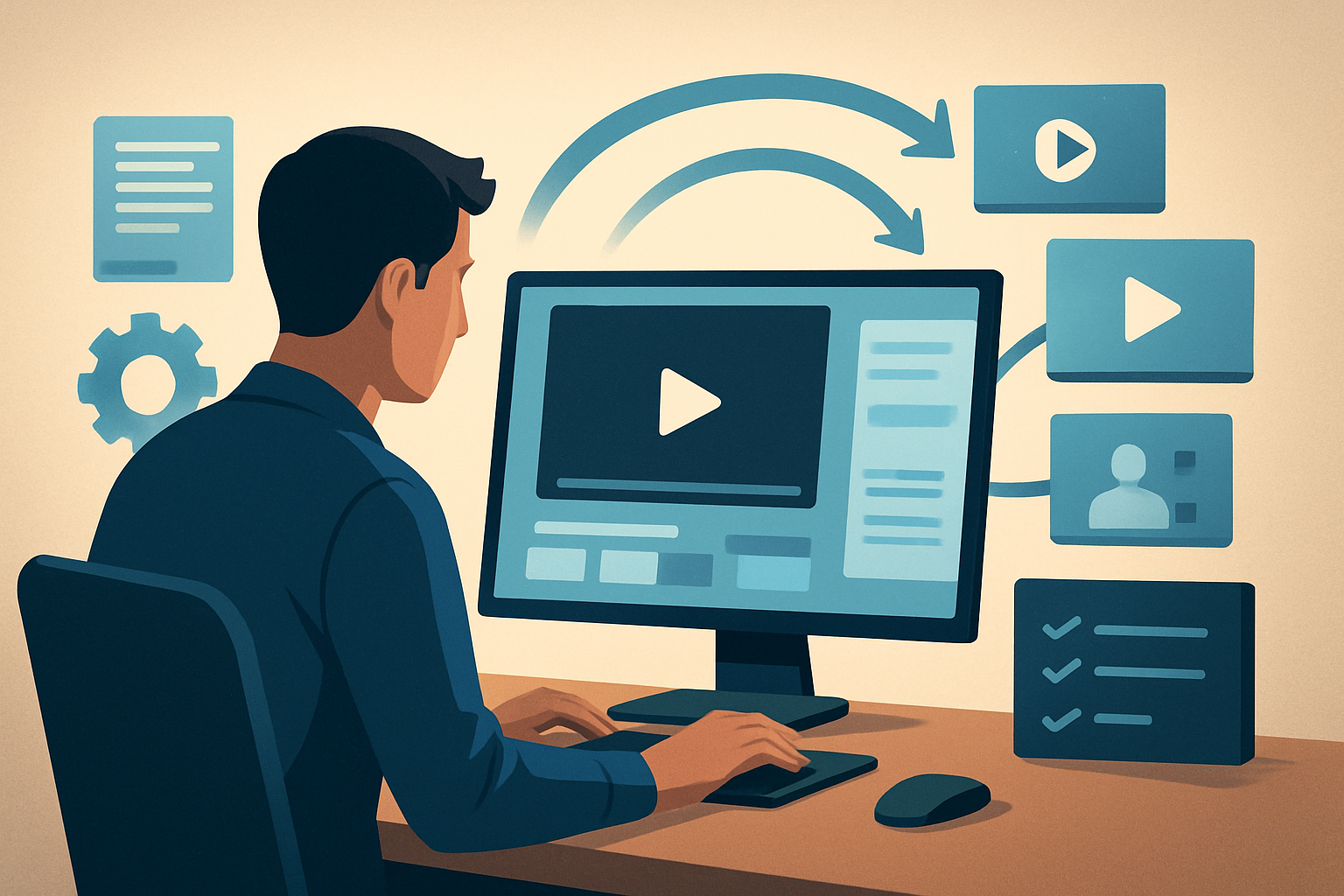

The core bottleneck: turning one long webinar into predictable, publish-ready assets
You finished a 90–120 minute webinar. Now you need a repeatable system to extract audience-ready clips, social reels, thumbnails, and long-form edits without redoing the work every time. The number-one bottleneck repurposers hit is not creativity — it’s workflow friction: manual scrubbing, tool switching, reformatting for platforms, and rebuilding the same finishing steps for every clip. That kills throughput.
Below is a step-by-step workflow that moves one webinar into 20+ assets reliably, plus the tools, mistakes to avoid, scaling tactics, and exactly where Shorz cuts friction so you can ship more assets with fewer handoffs.
Step-by-step workflow: one webinar → 20 assets
Capture and centralize
- Export the webinar recording (full-resolution video + separate high-quality audio if available).
- Put all files into a single project folder or into your editor’s asset library.
Fast transcript + highlight pass (10–30 min)
- Use automated transcription (Shorz can analyze/transcribe imported footage) or a preferred transcript tool.
- Scan the transcript for 20 strong soundbites: compelling hooks, surprising stats, actionable steps, customer quotes, and emotive moments.
Auto-edit first drafts (20–60 min)
- In a footage-first editor (Auto Edit Video workflow in Shorz), import the webinar and feed the timestamps or selects from the transcript.
- Generate an edit sequence automatically; accept the first draft and move directly to finishing. The goal is a fast first pass, not perfect polish.
Apply shared finishing layers (30–60 min)
- Add subtitles, title hooks, and branded overlays.
- Use auto zoom and face tracking for talking-head sections; insert B-roll or freeze-frames for transitions.
- Export a batch of platform-specific variants: widescreen (YouTube), portrait (Reels/TikTok), square (LinkedIn/IG feed).
Generate thumbnails and metadata (10–20 min)
- Produce thumbnail variations and write short titles/descriptions optimized for each platform.
- Store thumbnails and metadata with the project so they’re reusable for future uploads.
QA and schedule (10–30 min)
- Quick quality check on audio levels, captions, and hooks.
- Upload to scheduling tool or publish directly.
Total active time on the source: roughly 1.5–3 hours depending on finish level. That yields 20+ assets: ~12 short clips (30–90s), 3–5 social reels in portrait, 2–3 quote cards/thumbnails, and 1 edited long-form highlight.
For a deep operational approach, see related workflows: How to Turn One Podcast Into 20 Clips, How to Turn One Talk Into a Content System, and How to Turn One Livestream Into Evergreen Clips.
Tools needed
- Video editor with footage-first repurposing workflow (Shorz’s Auto Edit Video is designed for this).
- Reliable transcript generator (built-in Shorz analysis/transcribe or your preferred service).
- Audio editor for quick cleanups (optional: Audacity or similar).
- Asset manager or local folder structure (Shorz stores projects and assets locally for reuse).
- Social scheduler and analytics tool for publishing and measuring results.
- Thumbnail/design tool (Shorz can generate and store thumbnails alongside video outputs).
Shorz belongs in the central slot: import footage, transcribe/analyze, auto-generate edit sequences, apply shared polish, preview platform ratios, and store reusable assets.
Common mistakes to avoid
- Trying to craft perfect edits before batching: aim for a strong first draft, then finish consistently.
- Ignoring platform ratios: export at least 3 ratios from the same edit to avoid re-editing.
- Overusing B-roll everywhere: prioritize B-roll for pacing and emphasis, not as filler.
- Not saving style presets: recreate the same captions and overlays repeatedly wastes time.
- Leaving assets scattered: keep thumbnails, captions, and raw clips in one local project so future repurposing is faster.
Optimization tips
- Build a clip taxonomy before you cut: Hook, Insight, How-to, Quote, CTA. Search your transcript for those categories.
- Batch subtitles and title hooks across clips to speed finish passes.
- Use freeze-frame and grayscale to highlight quotes without heavy motion editing.
- Keep a reusable overlay pack (lower-thirds, logo reveal, end slate) and apply it as a single step.
- A/B test 2–3 thumbnails and title hooks per asset and use the winning patterns for future webinars.
How to scale this workflow
- Create templates: ratio-specific templates and caption styles that you can apply per project.
- Standardize selects: train a junior repurposer to do the transcript highlight pass with a checklist (identify timestamps, tag category).
- Reuse the asset library: store intros, outros, branded music, and thumbnail templates in a persistent project workspace so every new webinar inherits prior work.
- Automate downloads: if you publish to or pull from YouTube/TikTok, bring source URLs into your local library for repeat edits.
- Parallelize: while one clip is rendering, another teammate can be writing captions or creating thumbnails.
Shorz’s local project storage and My Assets system make templates and reusable assets an operational advantage. You’ll spend less time rebuilding the same materials and more time iterating on hooks and distribution.
Where Shorz reduces friction
- Faster first drafts: Auto Edit Video builds an edit sequence from webinar footage so you don’t start on a blank timeline.
- Less tool switching: import footage, transcribe, edit, apply subtitles, preview ratios, and generate thumbnails inside one persistent workspace.
- Reusable assets and persistent history: Shorz stores projects and generated assets locally (My Assets includes videos, generated thumbnails, images, audio, and downloaded GIFs), enabling repeatable output without re-importing.
- Platform prep built-in: preview and export landscape, portrait, and square variants from the same edit.
- Practical finishing controls: subtitles, title hooks, B-roll, auto zoom, face tracking, freeze frames, and simple color controls let you move beyond raw AI drafts to publish-ready assets.
This workflow-compression approach lets you move from source to publish-ready faster, with fewer handoffs and more consistent outputs.
FAQ
Q: How many assets can I realistically get from one 90-minute webinar? A: With a disciplined highlights pass, aim for 15–30 assets: multiple short clips (30–90s), several platform-specific reels, a few quote/thumbnail images, and at least one long-form highlight.
Q: How do I find the best clips fast? A: Use the transcript to search for keywords, timestamps, and categories (Hook, Insight, How-to, Quote). Prioritize clips that either start with a question or deliver a clear takeaway in 15–60 seconds.
Q: Do I need a separate tool for captions? A: Not necessarily—Shorz supports subtitles and caption finishing, so you can batch caption clips without leaving the workspace.
Q: How do I keep style consistent across multiple webinars? A: Save overlays, caption styles, and template exports in your asset library and apply them as presets for every project.
Q: Is local storage a limitation? A: Local project storage is a feature for operational repeatability: you keep a persistent history and reusable assets on your workstation to speed repeat jobs and avoid re-imports.
Ready to scale your webinar repurposing?
If you want a repeatable, operator-friendly system that compresses the route from source recording to publish-ready clips, explore the full workflow and tooling guidance here: Video Repurposing Workflow for More Output.