
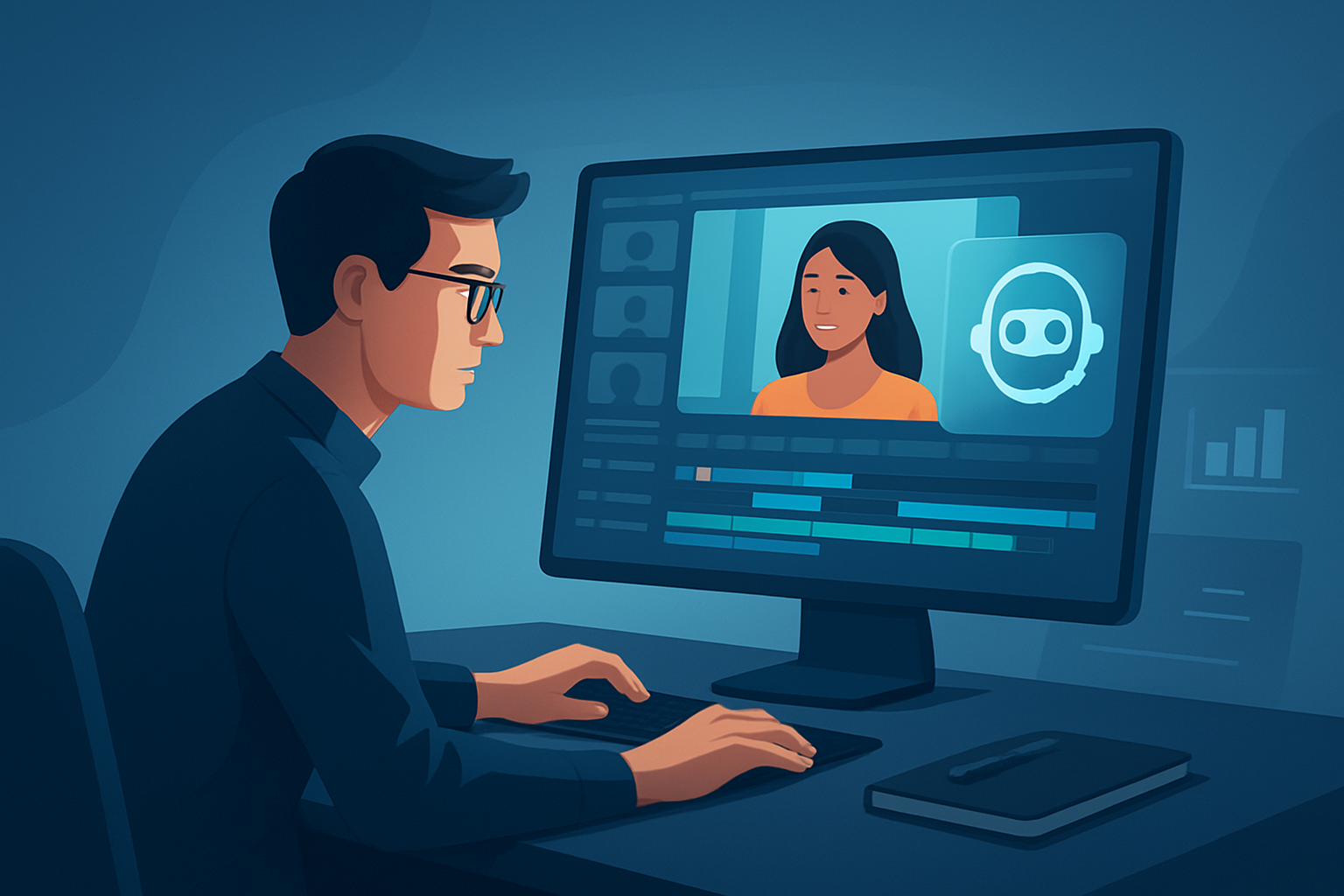

The bottleneck repurposers hit (and why process beats hacks)
You have a library of long-form recordings — webinars, interviews, podcasts — but getting consistent short-form clips out the door eats time. The usual pinch points: hunting down source files across drives, transcribing or detecting highlights, stitching platform-specific edits, and then recreating thumbnails and subtitles in separate apps. That tool-switching and one-off editing kills throughput.
An AI-first, reproducible workflow compresses those steps: faster first drafts, reusable assets, and fewer context switches. Below is a step-by-step, operator-focused system to turn inventory into publish-ready clips at scale, with where Shorz fits to reduce friction.
Step-by-step repurposing workflow
Gather and organize source material
- Pull recordings from drives, cloud backups, and channel URLs. Download YouTube or TikTok source clips into your local library as needed.
- Create a named project folder per series/episode to keep versions and assets together.
Ingest into a persistent workspace
- Import the footage, slide decks, and audio into a single project workspace so everything stays reusable.
- Run an initial analysis/transcription to surface timestamps, speakers, and candidate highlights.
Identify repurpose targets
- Pick the content type per platform: hooks for TikTok/Reels, highlights for YouTube Shorts, or teaser clips for LinkedIn.
- Mark timestamps for 15–60 second clips and flag longer tutorial segments for multi-part cuts.
Auto-generate first-pass edits
- Use an Auto Edit workflow to convert marked footage into edit sequences automatically.
- Let AI create cuts, simple transitions, and rough sequencing so you have fast first drafts to iterate from.
Apply finishing layers
- Add subtitles, title hooks, overlays, and B-roll to increase retention and social fit.
- Use face tracking, auto-zoom, and freeze-frame moments for visual emphasis.
- Create platform-specific crops (portrait, square, landscape) and preview each before exporting.
Create publishing assets
- Generate thumbnails and publish-ready metadata alongside each video output.
- Export final files per channel spec and bundle thumbnail + video for scheduling.
Store and reuse
- Save overlays, branding elements, and thumbnail templates in your asset library for consistent, repeatable outputs.
- Keep project history so you can re-open and re-edit without rebuilding from scratch.
Tools needed
- A Windows desktop workstation running your editing suite (Shorz fits here as a desktop AI video production app).
- Transcription/analysis (built into the Auto Edit pattern — Shorz can analyze/transcribe footage).
- B-roll and image assets (store in a reusable asset library).
- Thumbnail generator and asset export tools (Shorz supports thumbnail generation).
- Scheduling/publishing tool of your choice for queued uploads.
- Optional: an audio editor for advanced noise reduction or mastering.
If you want reference workflows tuned for particular creators, see AI Video Editor for YouTubers, and vertical-specific examples like Best AI Video Editor for Real Estate or Best AI Video Editor for Finance Content.
Mistakes to avoid
- Skipping transcription. Without timestamps and text you’ll miss micro-highlights that make great shorts.
- Recreating the same assets every time. Not saving overlays, title hooks, and templates wastes time.
- Ignoring platform ratios. A single landscape export won’t work on Reels/TikTok — preview in each ratio.
- Overcomplicating edits. For repurposing, aim for clarity and punch over studio-level polish.
- Treating thumbnails as an afterthought. They’re a primary discovery lever on social platforms.
Optimization tips
- Lead with the hook: ensure the first 3 seconds are attention-grabbing (subtitle + title hook helps).
- Batch similar tasks: transcribe an entire episode set, then batch-create clips from the transcript.
- Keep a reusable style kit: color bars, lower thirds, and subtitle styles saved so every video looks consistent.
- Use preview modes for each ratio before exporting to catch composition issues early.
- Automate exports for multiple ratios and include thumbnail generation in the same pass.
How to scale this workflow
- Standardize templates and naming conventions across projects so assets are discoverable.
- Batch-import multiple episodes into one workspace and run Auto Edit on each to produce fast first drafts.
- Build a library of high-performing hooks and repurpose them across episodes and platforms.
- Delegate finishing controls — reviewers can tweak subtitles and thumbnails without rebuilding edits.
- Use downloaded channel URLs and local caching to centralize source material and avoid repeated downloads.
For a broader look at scaling repurposing operations and increasing output, see Video Repurposing Workflow for More Output.
Where Shorz reduces friction
- Single persistent workspace: import footage, scripts, and assets into a local project and keep everything reusable.
- Auto Edit Video workflow: move from source footage to an editable first draft quickly using analysis/transcription and generated edit instructions.
- Ingest from social URLs: download YouTube or TikTok source clips directly into the local asset library, consolidating source material.
- Built-in finishing controls: subtitles, title hooks, overlays, B-roll, face-tracking, auto-zoom, and export previews for landscape/portrait/square — so you finish rather than just generate raw drafts.
- Asset reuse: My Assets stores videos, thumbnails, images, and audio locally so you can repeat styles and speed up recurring deliverables.
- Thumbnail generation and platform helpers: reduces last-mile friction by creating publishing-adjacent assets alongside video outputs.
All of these compress the number of apps and handoffs in a repurposing pipeline — faster first drafts, fewer tool switches, and reusable project history.
FAQ
Q: Can I turn a 60–90 minute webinar into dozens of short clips automatically? A: Yes. The Auto Edit Video pattern analyzes/transcribes footage, surfaces highlights, and generates first-pass edits you can finish for short-form outputs.
Q: Will my assets be saved for future repurposing? A: Projects and generated assets are stored locally in a persistent workspace and My Assets library so you can reuse overlays, thumbnails, and audio.
Q: Can I repurpose content from YouTube and TikTok? A: You can download source material from YouTube or TikTok URLs into the local asset library to include that footage in repurposing projects.
Q: Does the tool handle subtitles and multiple aspect ratios? A: Subtitles, title hooks, and previews for landscape, portrait, and square are part of the finishing toolkit so you can prepare platform-specific exports.
Q: Is this a cloud editor or a browser app? A: It’s a Windows desktop production suite that stores projects and assets locally.
Q: How do I maintain brand consistency across dozens of clips? A: Save overlays, title hooks, color settings, and thumbnail templates into your asset library and apply them as templates during finishing.
Next step — make repurposing systematic
If you want a practical, repeatable system that turns existing content into platform-ready clips with less tool switching and faster first drafts, start by centralizing your source files, batching transcript-based clipping, and moving generation and finishing into one persistent workspace. Learn more about a production workflow built for repurposing and scaling at Video Repurposing Workflow for More Output.
For workflow patterns tailored to creators or vertical teams, check these guides: AI Video Editor for YouTubers, Best AI Video Editor for Real Estate, and Best AI Video Editor for Finance Content.


