
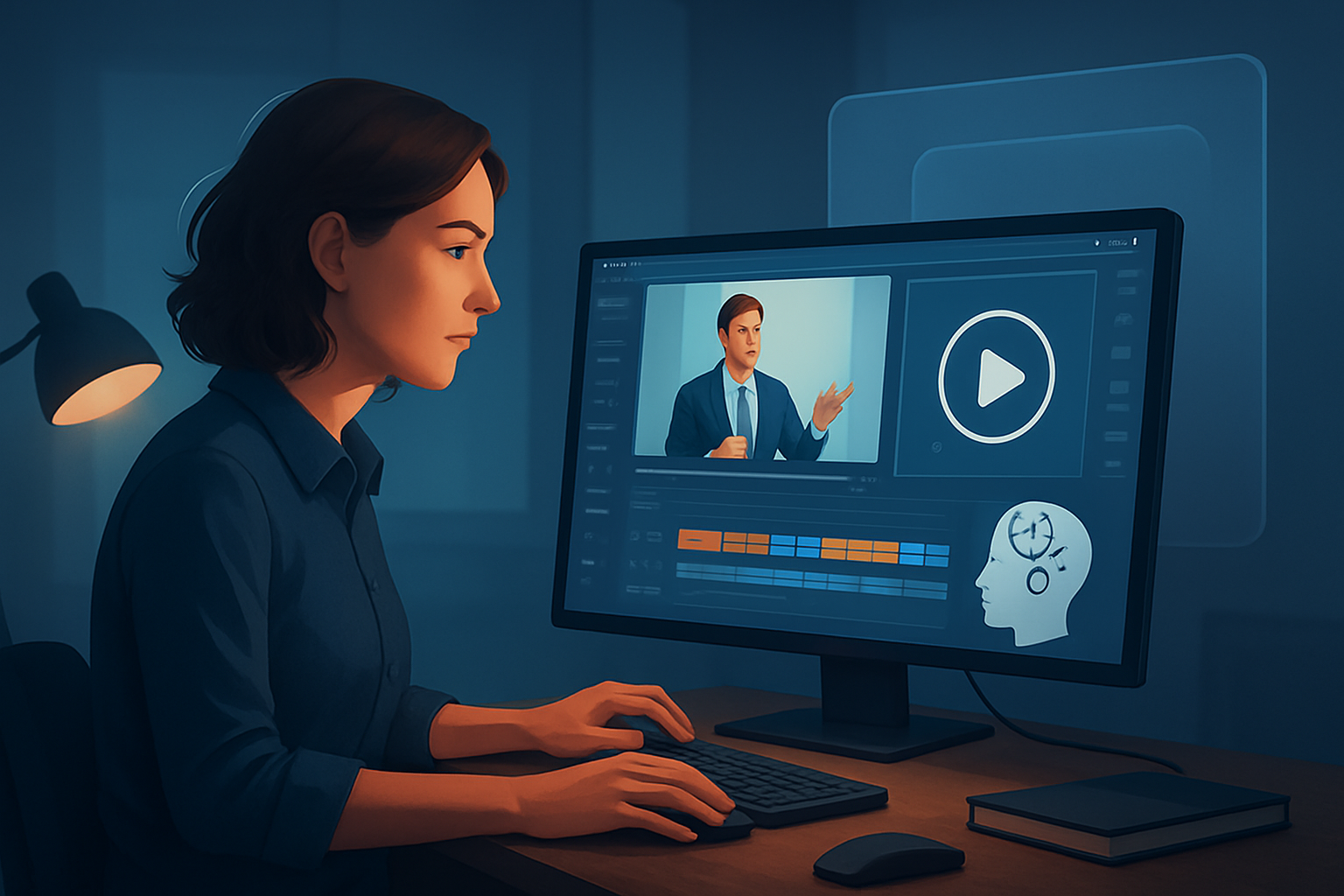

For repurposers turning webinars into YouTube clips — get finished videos faster
You repurpose webinar recordings into YouTube clips. Your goals: find the best moments, package them with YouTube-ready hooks and thumbnails, and publish consistently without spending hours per clip. You’re working with long-form source files, multiple aspect ratios, and a small team or solo setup. You need a repeatable, fast workflow that produces finished, publish-ready videos — not just raw AI drafts.
Shorz is a Windows desktop AI video production suite built for exactly that pattern: footage-first repurposing, local asset libraries, and AI-assisted editing you can finish inside one persistent workspace.
Why webinar-to-YouTube repurposing needs this workflow now
- Webinars are long, but attention spans are short. You must turn 60–90 minute recordings into dozens of short clips that attract viewers fast.
- YouTube’s algorithm favors frequent uploads and strong thumbnails/hooks. Slowing down on editing means missed reach.
- Manual highlight-finding, captioning, resizing for multiple contexts, and thumbnail creation are the bottlenecks that kill throughput.
- Repurposers who can compress this process get more clips per webinar, more consistent branding, and faster time-to-publish.
Shorz compresses the path from raw webinar footage to publish-ready YouTube clips: import, find highlights, generate an edit, polish subtitles and thumbnail, preview in YouTube ratio, and export — all with assets stored locally for reuse.
Practical workflow you can implement this week
Gather and import
- Download your webinar recording or point Shorz to a YouTube URL to ingest the source into the local asset library.
- Add brand assets (logos, intro/outro images, music stems) to the same library for reuse.
Auto-analyze and rough-cut
- Use the Auto Edit Video project to transcribe and analyze the webinar. Let Shorz generate an initial edit timeline that marks candidate highlights and builds a sequence.
- Scan generated markers to pick the top 5–10 moments you want as separate clips.
Convert to clip drafts
- For each selected moment, open the draft and apply title hooks, subtitle presets, and automatic face tracking or auto-zoom so the subject stays framed.
- Choose landscape preview for YouTube uploads. Use freeze-frame or grayscale moments to emphasize key sentences if needed.
Add social packaging and finish
- Layer B-roll, overlays, borders, emojis, and sound-effect cues from the asset library to match your channel style.
- Generate and reuse thumbnails inside the project. Tweak in the thumbnail generator then store it with the project.
Export and repeat
- Export the finished clip in the YouTube-optimized ratio you reviewed in preview.
- Store the finished assets locally so you can batch-apply the same style to future webinars.
This sequence moves you from source to publish-ready files in the same desktop workspace, making repeatable output and reusable assets the norm rather than an afterthought.
Best tool criteria for webinar-to-YouTube repurposers
Choose tools that check these boxes — and where Shorz fits:
- Footage-first repurposing: can import long webinar files and auto-generate usable edit timelines. (Shorz’s Auto Edit Video is designed for this.)
- Local asset persistence: stores projects and assets locally for repeatable templates and libraries. (Shorz stores projects and assets on your Windows machine.)
- Drafts you can finish: AI should create a first cut but let you polish titles, subtitles, B-roll, and color in the same app. (Shorz combines AI generation with finishing controls.)
- Multi-ratio preview and export: preview in landscape, portrait, and square to validate YouTube and cross-post formats. (Shorz supports these preview and export contexts.)
- Thumbnail and publish packaging: produce thumbnails and publish-adjacent assets without leaving the editor. (Shorz generates and stores thumbnails alongside video outputs.)
- Minimal tool switching: a single workspace that handles transcription, edit, subtitles, hooks, and exports. (Shorz centralizes these capabilities.)
If you measure tools by how much they shorten the path from raw webinar to a publish-ready YouTube clip, Shorz is built to compress that workflow.
Where Shorz fits in your stack
- Source storage: keep original webinar recordings in your drive, then ingest into Shorz’s local asset library using file import or YouTube URL ingestion.
- Core editing: use Auto Edit Video to create initial cut sequences, then refine with Shorz’s subtitle, title-hook, B-roll, and overlay systems.
- Polish and packaging: finalize visual polish — auto zoom, face tracking, freeze-frame, basic color controls — and generate thumbnails inside the same project.
- Export and publish: export YouTube-ready files and reuse project assets for the next batch of clips.
Shorz sits at the center of a repurposing stack as the single tool that accepts long-form source, produces AI-assisted edits, and stores reusable assets locally — reducing switches between transcription tools, subtitle editors, thumbnail apps, and separate video editors.
Quick tips to scale output without losing quality
- Create a webinar clip template in Shorz with subtitle styles, title-hook presets, and a thumbnail layout.
- Use the Auto Edit Video workflow to surface candidate highlights, then batch-process your top picks through the template.
- Keep a reusable B-roll and SFX folder in the local asset library for consistent production value across clips.
- Preview in landscape first for YouTube, then save an alternate crop for cross-posting to other platforms.
If you want cross-posting advice, see resources for other short-form platforms: AI Video Editor for TikTok Creators, AI Video Editor for Instagram Creators, and learn the basics of AI video editors here: What Is an AI Video Editor?.
FAQ — webinar repurposers to YouTube
Q: Can Shorz handle hour-plus webinar files? A: Yes. The Auto Edit Video workflow is designed to import long-form footage, transcribe or analyze it, and generate edit sequences you can refine into short clips.
Q: Will I still need separate subtitle or thumbnail tools? A: Shorz includes subtitle design, thumbnail generation, and publish-adjacent packaging inside the same desktop workspace, so you can finish these assets without switching apps.
Q: Can I reuse branding across clips? A: Yes. Shorz stores projects and generated assets locally in a reusable asset library, letting you apply the same overlays, logos, and presets across webinars.
Q: Is this cloud-based or collaborative in real-time? A: Shorz is a Windows desktop app that stores projects locally. It focuses on fast, repeatable workflows on your machine rather than real-time multi-user collaboration.
Q: How do I find the best clip moments quickly? A: Start with Auto Edit Video’s analysis/transcription to surface markers and candidate highlights, then curate the top moments for final polish.
Ready to create finished YouTube webinar clips faster?
Compress your webinar-to-YouTube workflow with a Windows desktop suite built for footage-first repurposing, reusable libraries, and finish-ready outputs. Try Shorz and move from source recording to publish-ready clip inside one persistent workspace: What Is an AI Video Editor?.


