
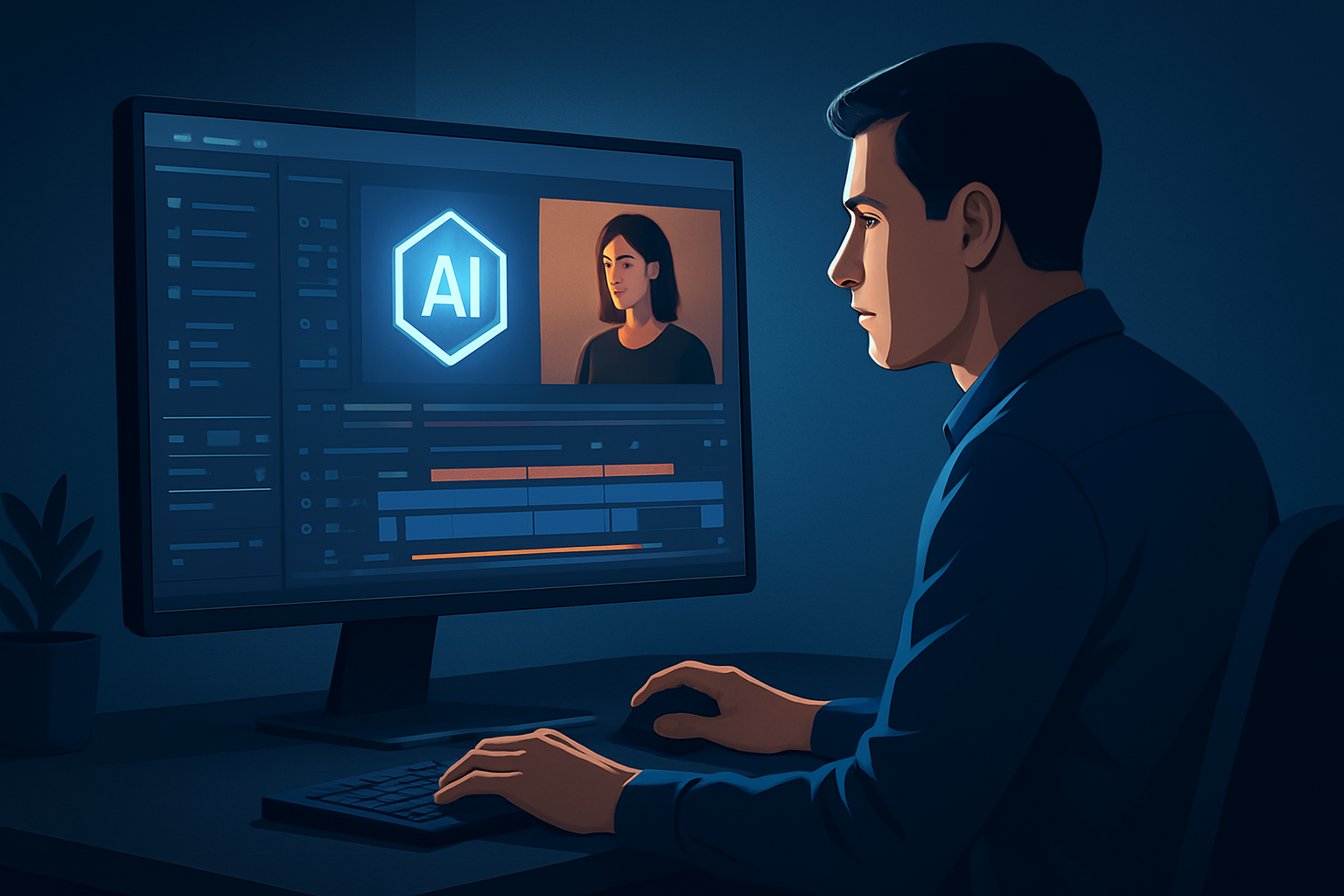

For operators: YouTube editors who must turn assets into finished videos faster
You’re an operator — a YouTube editor responsible for output, consistency, and hitting tight schedules. You need finished videos (full-length uploads, Shorts, and repurposed clips) without juggling seven apps or rebuilding the same packaging every week. This page explains how a Windows desktop AI video editor focused on creators compresses that workflow, gets faster first drafts, and produces publish-ready assets you can reuse.
Why editors on YouTube need this workflow now
YouTube’s pace demands more variants per asset: long-form uploads, Shorts, thumbnails, and repurposed social cuts. Algorithms reward frequent testing of titles, hooks, and thumbnails. That amplifies traditional bottlenecks:
- Manual rough-cuts and the “first draft” that eats hours.
- Re-creating subtitles, hooks, and thumbnails across formats.
- Switching between an NLE, subtitle tool, thumbnail generator, and a file manager.
- Inconsistent visual packaging (titles, overlays, borders) across uploads.
A Windows desktop AI editor built for creator workflows reduces those steps by keeping footage, AI drafts, finishing controls, and publish-ready packaging in one persistent workspace.
Practical week-one workflow (implement this week)
- Ingest and centralize
- Import your folder of raw footage, audio, and images into Shorz’s local asset library. Use URL-based ingestion for external clips when needed.
- Generate a first draft
- Start an Auto Edit Video project from your footage to get a fast, editable first draft. If you have scripts instead, use Text-to-Video; for dialogue podcasts, use the Podcast project type.
- Apply finishing layers (15–45 minutes)
- Add subtitle design, title hooks, overlays, and music from the built-in finishing controls. Use auto zoom and face tracking to stabilize framing and keep subjects centered.
- Create publish variants
- Preview and export the sequence in landscape, portrait, and square ratios. Tweak cropped framing with the same project instead of rebuilding edits.
- Generate publishing assets
- Produce thumbnails alongside the video output and store them in the project for A/B testing.
- Store and reuse
- Save your project and generated assets locally to build a reusable library for future episodes, ads, or repurposing.
These steps yield faster first drafts, repeatable outputs, and fewer external tools.
What “best” means for desktop AI video editors for editors
When you evaluate tools, use these criteria — and how Shorz stacks up:
- Local, persistent workspace: Projects and generated assets stored locally for repeat work and asset reuse (Shorz stores projects and assets on your Windows machine).
- Fast drafts plus finishing controls: AI-assisted draft that doesn’t stop at a raw cut — includes subtitles, title hooks, overlays, B-roll, music, and mixing controls (Shorz combines AI generation with finishing controls).
- Creator packaging and export contexts: One workflow that produces thumbnails, subtitles, and exports in landscape/portrait/square for YouTube, Shorts, and social (Shorz supports these preview and export flows and generates thumbnails).
- Minimal tool switching: Ingest → AI draft → finish → export inside one app to save time (Shorz is built as a workflow-compression desktop suite).
- Reusable asset library: Store and reuse B-roll, overlays, thumbnails, and audio across projects (Shorz imports and stores assets into a reusable library).
- Visual polish without heavy VFX: Auto zoom, face tracking, freeze frames, grayscale moments, and basic color controls for quick polish (Shorz offers these visual polish layers).
If those are your priorities, Shorz fits the definition of a practical “best” desktop AI editor for YouTube editors focused on throughput and consistent packaging.
Where Shorz fits into your stack and team workflow
- Primary draft and finish stage: Use Shorz to move from source material to publish-ready assets faster — less jumping between an NLE, subtitle app, thumbnail tool, and file manager.
- Packaging and repurposing hub: Produce the main upload plus Shorts and social cuts from the same project using aspect previews and thumbnail generation.
- Asset library and repeatable templates: Build a local library of hooks, overlays, and thumbnails to reuse across episodes and campaigns.
- Hand-off: When a project needs heavy VFX or in-depth color grading, export the video files from Shorz and continue in your specialist NLE. For most creator, ad, explainer, and faceless workflows, Shorz reduces tool-switching and delivers publish-ready output.
For more context on creator workflows and comparisons, see Best Desktop AI Video Editor for Creators. If you run agency-style operations or need different scale criteria, see Best Desktop AI Video Editor for Agencies. For lower-spec machines on Windows, check Desktop AI Video Editor for Low-End Machines.
Quick checklist to compress your throughput today
- Centralize assets into one local library.
- Run Auto Edit Video to get a first draft within the day.
- Apply subtitle and hook templates and save them as project presets.
- Preview in portrait and square to produce Shorts and Reels simultaneously.
- Export video + thumbnail, store both in the project folder for A/B tests.
These inexpensive habits (time + templates) provide outsized gains in consistent weekly output.
FAQ — for YouTube editors and operators
Q: Can I create both YouTube uploads and Shorts in the same project? A: Yes. Shorz previews and exports in landscape, portrait, and square within the same project so you can produce a full-length upload and short-form variants without rebuilding edits.
Q: Are assets and generated files stored locally? A: Yes. Shorz stores projects and generated assets on your Windows machine for persistent history, repeatable output, and reusable libraries.
Q: How do I get a usable first draft quickly? A: Start an Auto Edit Video project from your footage or Text-to-Video from a script. Shorz’s AI draft plus built-in finishing controls gets you past the raw-cut stage to a publishable baseline you can refine.
Q: Can I reuse thumbnails, overlays, and subtitles across episodes? A: Yes. Shorz’s asset library is designed for reuse. Generated thumbnails and packaging assets are stored alongside projects for future templates and A/B testing.
Q: Will Shorz replace my NLE? A: For short-form, creator-style, ad, explainer, and faceless workflows, Shorz often replaces multiple tools by keeping ingestion, AI draft, finishing, and export in one app. For complex VFX or advanced color grading, you can export assets from Shorz and finish them in a specialized NLE.
Ready to compress your YouTube editing workflow?
Download the Windows desktop app and start turning source material into publish-ready videos, thumbnails, and variants in one persistent workspace: Download Shorz for Windows.


