







Intro — what this guide covers (and why you searched for it)
You searched for "desktop AI video software complete guide" because you want practical, platform-aware advice: how to speed from source material to publish-ready video on a Windows machine without bouncing between a dozen tools. This guide explains what desktop AI video software is, why it matters now for creators, a clear workflow you can apply today, common mistakes to avoid, the best tool categories to consider, audience-specific use cases, and exactly how Shorz fits into a compressed creator workflow.
If you want a deep-dive on why desktop-first workflows matter, see this primer. Why Desktop AI Video Workflows Matter
Definition: what is "desktop AI video software"?
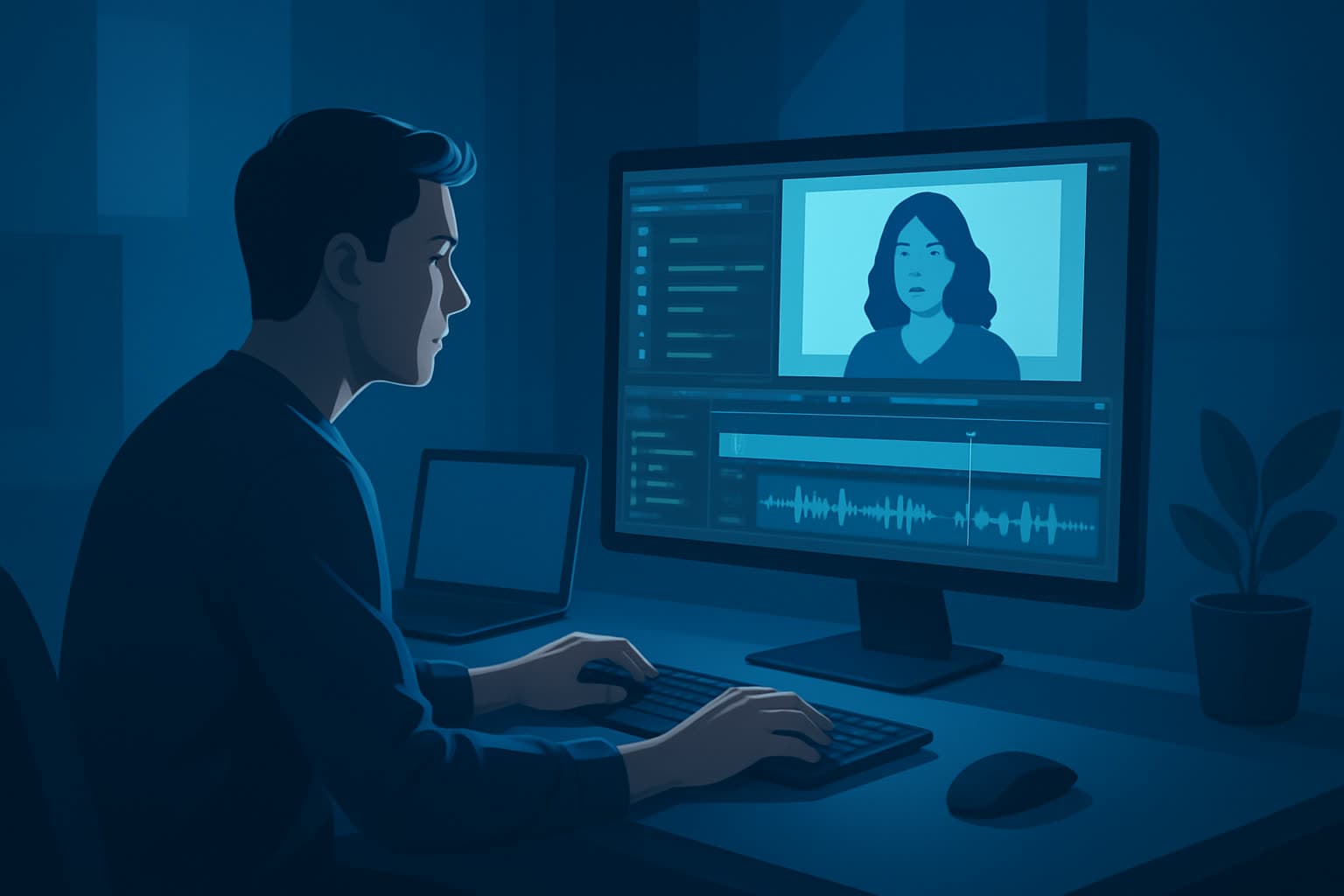
Desktop AI video software is an app installed on your Windows workstation that uses AI-assisted generation and editing features to accelerate video production. Key qualities:
- Runs locally on Windows (not browser-only).
- Lets you import footage, images, audio, and scripts.
- Produces AI-assisted first drafts (auto edits, text-to-video, avatars, podcast-to-video).
- Includes finishing controls so outputs are publish-ready, not just raw generators.
- Stores projects and assets locally so you can reuse them across projects.
Shorz is an example of this category: a Windows desktop suite with Auto Edit Video, Text-to-Video, Avatar, and Podcast project types, plus local asset libraries and finishing controls.
Why this matters now for creators
Short-form platforms and tight schedules mean creators must:
- Produce faster first drafts and iterate quickly.
- Reuse assets (hooks, thumbnails, overlays) across formats.
- Publish correctly sized versions for YouTube, TikTok, Instagram Reels, and other channels.
- Keep local control of project history and reusable libraries for repeatable output.
Desktop AI tools compress workflows by combining generation and finishing in one persistent workspace — fewer app switches, faster drafts, and reusable assets. For more context on the desktop approach, see this guide. Why Desktop AI Video Workflows Matter
Core workflow (a practical framework you can use today)
Use this 6-step framework whether you’re making a short explainer, ad, repurposed podcast clip, or faceless content:
Source and ingest
- Gather footage, audio, scripts, avatar images, and web content.
- Import into a reusable local asset library rather than scattering files across folders.
Generate a first draft
- Choose the appropriate project type: Auto Edit Video (from footage), Text-to-Video (from scripts), Avatar (image + audio), or Podcast (dialogue/audio).
- Let the tool produce a first draft you can review.
Polish and finish
- Apply subtitles, title hooks, B-roll, overlays, borders, and music.
- Use visual polish layers: auto zoom, face tracking, freeze frame, grayscale moments, and basic color controls.
- Adjust volume mix and sound effects.
Platform previews
- Preview edits in landscape, portrait, and square to test how the clip will look on YouTube, TikTok, and Reels.
- Generate thumbnails and packaging (GIFs, emojis, overlays) alongside the video.
Export variants and assets
- Export the correct ratio files and thumbnails for each platform.
- Save reusable design elements to your local library for future projects.
Iterate and reuse
- Keep a persistent project history so you can repurpose assets and produce faster next drafts.
Practical example: Turn a 20‑minute podcast episode into five 60‑second clips by importing the episode into a Podcast project, selecting highlight timestamps, auto-generating captions and thumbnails, applying a consistent title hook and overlay, previewing in portrait, and exporting platform-ready files.
Common mistakes creators make (and how to avoid them)
- Treating AI output as finished: Always plan a finishing pass (subtitles, trim, B-roll, color and audio corrections).
- Not organizing assets: Use a local reusable asset library so titles, hooks, and B-roll are available for repurposing.
- Ignoring platform composition: Preview and tweak each ratio (portrait for TikTok/Reels; landscape for YouTube).
- Overcomplicating toolchain: Too many apps means slower first drafts — prefer a desktop app that supports generation + finishing.
- Missing publishing-adjacent assets: Export thumbnails and subtitle files together with video to save time during publishing.
Best tools or options to consider (what to prioritize)
When evaluating desktop AI video tools, prioritize:
- Multi‑project types: Support for footage-based, script-based, avatar, and podcast workflows.
- Local asset management: Persistent libraries for repeatable output and faster drafts.
- Built-in finishing controls: Editable subtitles, B-roll, overlays, audio mixing, and thumbnail generation.
- Ratio previews and export presets: Landscape, portrait, square previews and tailored exports for major platforms.
- Reusable packaging: Ability to save hooks, overlays, and templates for consistent branding.
Shorz meets these priorities as a Windows desktop suite that combines the four core project types with local asset storage, finishing controls, ratio previews, and thumbnail generation.
If you want a technical primer on why desktop-first workflows speed production, see this article. Why Desktop AI Video Workflows Matter
Best use cases by audience (with practical examples)
- Social creators (TikTok/Reels/YouTube Shorts)
- Use Auto Edit Video to turn raw footage into quick edits, then preview/export portrait and square variants with subtitle styling and hooks.
- Podcasters
- Use the Podcast project type to convert episodes into short social clips with captions, thumbnails, and platform-specific exports.
- Marketers & advertisers
- Produce multiple ad cuts from a longer script using Text-to-Video and consistent brand overlays saved in the asset library.
- Faceless creators & explainers
- Use Avatar projects to combine avatar images and scripted audio, add B-roll and overlays, and export publish-ready assets.
- Repurposing workflows
- Store hooks, titles, and thumbnails locally to rapidly repack content across platforms and campaigns.
For creators focused on reducing tool switching and producing repeatable output, a desktop tool that stores assets locally and supports finishing controls is essential. To start testing that workflow on Windows, try Shorz. Download Shorz for Windows
How Shorz fits this workflow (specifics you can use immediately)
Shorz is designed as a Windows desktop AI video production suite that compresses the steps above into one persistent workspace:
- Four core project types let you start from footage, scripts, avatar images + audio, or dialogue/audio.
- Local asset library: import footage, images, audio, and web content (URL-based ingestion) into reusable libraries kept with your projects.
- AI generation + finishing: Shorz produces first drafts and provides finishing systems for subtitles, title hooks, B-roll, overlays, borders, music, SFX, and volume mixing.
- Visual polish: auto zoom, face tracking, freeze frames, grayscale moments, and basic color controls for a cleaner final pass.
- Platform-ready previews & exports: preview and export in landscape, portrait, and square ratios; includes YouTube and TikTok helpers and thumbnail generation.
- Workflow compression benefits: faster first drafts, repeatable output, reusable assets, and less tool switching because assets and project history live locally in a single Windows app.
Example workflow in Shorz:
- Create a Podcast project and import your episode audio.
- Use the AI-assisted draft to detect highlights, generate captions, and auto-place title hooks.
- Apply a branded overlay and thumbnail template from your local asset library.
- Preview in portrait and square, tweak the audio mix and subtitles, and export platform-ready files alongside generated thumbnails.
Start compressing your workflow with Shorz on Windows. Download Shorz for Windows
FAQ
Q: Is desktop AI video software better than browser tools? A: Desktop tools give you local asset control, persistent project history, and often tighter integration between generation and finishing. If you need local libraries and repeatable output, a Windows desktop app is a strong fit.
Q: Does Shorz run on Mac or in a browser? A: Shorz is a Windows desktop application.
Q: Where are projects and assets stored? A: Shorz stores projects and generated assets locally on your machine, which makes it easier to build reusable libraries and preserve project history.
Q: Can I preview for TikTok, Reels, and YouTube? A: Yes — Shorz supports landscape, portrait, and square preview modes and includes YouTube and TikTok helpers as part of the workflow.
Q: Can I create thumbnails and other publishing assets? A: Yes — Shorz generates, stores, and reuses thumbnails and supports packaging assets like subtitles, overlays, GIFs, and emojis.
Q: Does Shorz offer multi-user, real-time collaboration or cloud project sharing? A: Shorz is built around local projects and asset libraries. It does not advertise real-time multi-user collaboration or cloud project sharing as part of its core Windows desktop workflow.
Q: How do I get started? A: Download and install the Windows app to try the four project types and local asset workflows. Download Shorz for Windows
Call to action
Ready to compress your creator workflow and produce faster, repeatable drafts on Windows? Download Shorz and try the four project types with local asset libraries and built-in finishing tools. Download Shorz for Windows
Further reading: a practical take on desktop-first benefits for creators. Why Desktop AI Video Workflows Matter

