









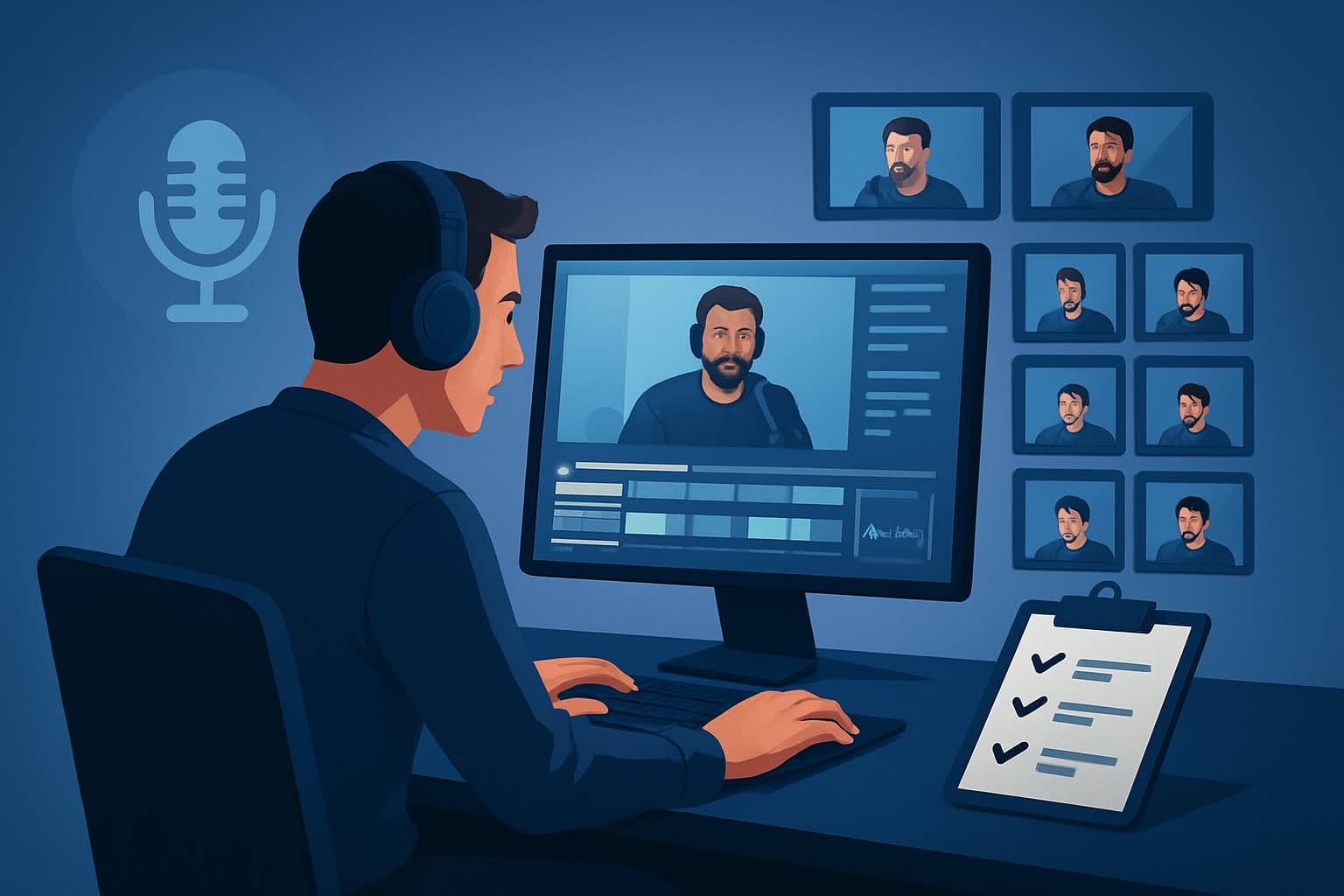

The bottleneck: turning one long podcast into many publishable clips
You recorded a 60–90 minute podcast that contains the raw material for dozens of short videos. But the work to extract, edit, format, subtitle, thumbnail, and export each clip one-by-one kills throughput. Common friction points are: finding the best moments in the timeline, creating platform-specific ratios, adding on-brand hooks and subtitles, and producing thumbnails without hopping between apps.
The goal here is repeatable, template-driven output: take one episode and produce 20 ready-to-publish clips with predictable quality and speed.
Step-by-step workflow to get 20 clips from one podcast
Prepare and ingest (20–40 minutes)
- Gather all source files: raw multi-track audio, any video recorded, guest assets, and show notes.
- Import everything into your editing workspace and store assets in a persistent library so they’re reusable across clips.
Create a transcript and quick chaptering (10–30 minutes)
- Generate a full transcript and skim it to mark 20 high-value moments: punchlines, tips, case studies, hot takes, and soundbites.
- Save timestamps as a clip list. These markers become your clip skeleton.
Auto-generate rough cuts (30–60 minutes)
- Batch-create short rough cuts from those timestamps. Use an Auto Edit workflow that analyzes the footage, builds an edit sequence, and creates first-pass clips for each timestamp.
- Target clip lengths by platform: 15–30s for TikTok/Instagram Reels, 45–60s for YouTube Shorts, and 2–3m for LinkedIn/YouTube long-form snippets.
Apply finishing templates (30–60 minutes)
- Apply a finishing template that includes: title hook (first 3 seconds), subtitles, logo overlay, and a sound/music bed.
- Add visual polish: auto-zoom or face-tracking on speakers, freeze-frame moments for emphasis, and small color tweaks where needed.
Create platform variants (15–45 minutes)
- Export or preview each clip in portrait, square, and landscape ratios. Adjust framing if faces get cropped.
- Swap in different title hooks or thumbnail crops for platform-specific audiences.
Produce thumbnails and metadata (15–30 minutes)
- Generate multiple thumbnail options per clip and reuse a naming convention and tag set for faster uploads.
Batch export and schedule (15–30 minutes)
- Export all clips and assets in one pass. Queue them into a scheduler or hand off to the publishing person with a simple CSV of timestamps, captions, and tags.
Total batching time: with templates and repeatable steps, you should be able to produce 20 clips in a few focused hours rather than days.
Tools needed
- A desktop video editor/workstation that supports footage-first repurposing and reusable asset libraries. Shorz is one such Windows desktop AI video production suite that compresses this workflow with Auto Edit Video, Podcast mode, and local asset storage.
- A transcription engine (if not built into your editor) for quick chaptering and clip selection. Shorz’s Auto Edit workflow includes analysis/transcription to build editing instructions.
- A thumbnail generator or image editor — Shorz can generate, store, and reuse thumbnails alongside video outputs.
- A scheduling or social publishing tool for bulk uploads.
- Optional: a simple audio editor or DAW for any noise reduction or EQ before importing.
Mistakes to avoid
- Ripping clips without a hook. Open with the most attention-grabbing line or a one-line context caption.
- Treating each clip as a one-off. Don’t reinvent overlays, subtitles, or thumbnails every time — use templates.
- Skipping subtitles. Many viewers watch on mute; subtitles are mandatory.
- Exporting only one ratio. You’ll lose reach if you don’t adapt framing for each platform.
- Doing every step in separate apps. Tool switching kills speed and introduces inconsistency.
Optimization tips that actually save time
- Start with a template library: title hooks, subtitle styles, music beds, and thumbnail frames you can apply in one click.
- Prioritize 20 moments before you touch the editor. Selecting clips in advance makes the batch edit step deterministic.
- Use face tracking and auto-zoom for single-camera podcast footage so portrait crops don’t require manual reframing.
- Reuse and version thumbnails: generate multiple crops from a single master image rather than creating new images from scratch.
- Build an on-episode checklist for metadata (hashtags, CTAs, timestamps) so publishing is a predictable handoff.
How to scale the workflow
- Turn templates into project presets. Save a “podcast → 20 clips” preset that applies your hook, subtitle style, aspect ratios, and audio mix automatically.
- Create a persistent My Assets library of B-roll, lower-thirds, music stems, and thumbnails to reuse across episodes.
- Automate source ingestion: download previously published videos from platforms into your local library to repurpose evergreen moments.
- Delegate predictable, repeatable tasks (initial transcript cleanup, metadata fill, thumbnail selection) to junior editors or VAs using clear naming and a shared checklist.
- Track outputs and performance so the selection stage improves: which clip types, hooks, and thumbnail styles get the most engagement.
For playbooks on converting other long formats into many assets, see these guides:
- How to Turn One Webinar Into 20 Assets
- How to Turn One Talk Into a Content System
- How to Turn One Livestream Into Evergreen Clips
Where Shorz reduces friction (operationally precise)
- Workflow compression: Shorz combines Auto Edit Video, Podcast mode, and a local asset library so you can move from source to publish-ready clips faster with fewer apps.
- Footage-first repurposing: import recordings, auto-analyze/transcribe, and generate edit sequences as first drafts you can finish in the same workspace.
- Persistent, reusable assets: the My Assets system stores source files, generated thumbnails, audio stems, and overlays so repeat work is faster and more consistent.
- Batch finishing tools: subtitles, title hooks, B-roll, overlays, aspect ratio previews, and visual polish layers live in one app so you don’t export between steps.
- Podcast dialogue workflow: if your episode is dialogue-based, Podcast mode lets you set up speaker turns and reuse avatar or speaker styles across episodes.
- Source material intake: Shorz supports downloading source material from platform URLs into the local library, strengthening repurposing of previously published clips.
- Faster first drafts and repeatable output: use the app’s templates and local project history to reduce manual setup and produce predictable batches.
FAQ
Q: Can I reliably get 20 clips from any single podcast? A: Generally yes—most episodes contain 20+ usable moments. The limiting factor is selection and editorial focus, not the raw material.
Q: Do I need to re-record anything? A: Rarely. The aim is to extract and polish existing moments with title hooks, subtitles, and visual polish. Re-record only for missing context or branded CTAs.
Q: Will I have to manually reframe for portrait crops? A: Use tools with auto-zoom and face tracking to reduce manual reframing. Previewing in each ratio lets you catch issues quickly.
Q: Can this be done without design skills? A: Yes. Templates for titles, subtitles, and thumbnails let non-designers produce consistent, on-brand assets.
Q: How do I keep the workload sustainable? A: Systemize: a preset export template, a consistent naming scheme, and a reusable asset library cut per-episode time dramatically.
Next step (CTA)
If you want a workflow-first approach to turning long audio and video into consistent short clips, explore a practical repurposing playbook and tools here: Video Repurposing Workflow for More Output.