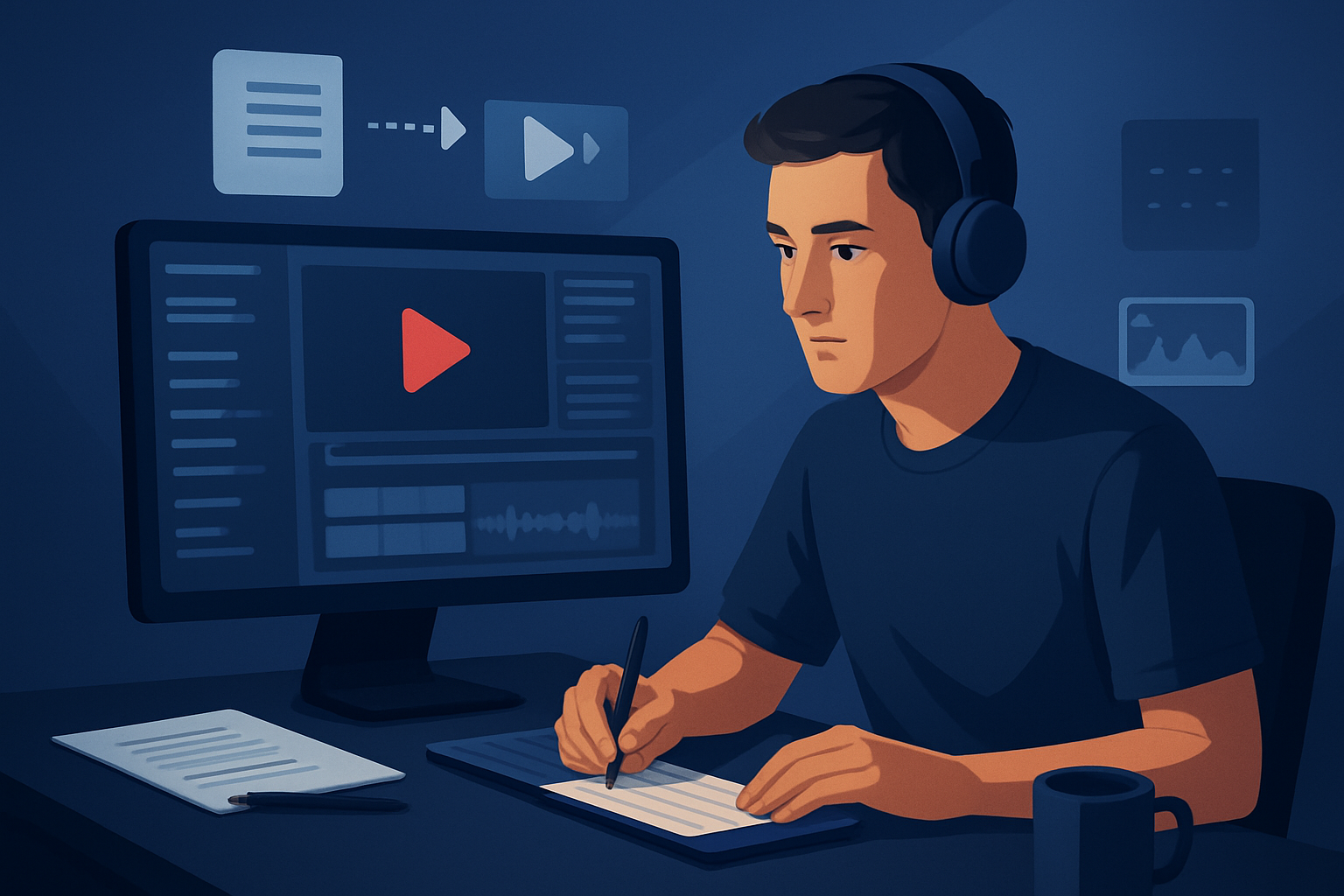

The bottleneck: turning scripts into publish-ready repurposed videos
Repurposers sit on two problems: a backlog of existing content and a slow, multi-tool pipeline that makes each new clip a small project. The core bottleneck is not creativity — it’s the grind of matching script sections to visuals, producing narrative audio, and finishing platform-ready variants (subtitles, hooks, thumbnails) across formats. You need a repeatable, low-friction system that turns scripts into multiple deliverables without rebuilding the wheel every time.
This workflow focuses on "script to video for repurposing workflow" — a step-by-step, operational method to convert scripts (new or derived from old content) into short-form, publish-ready assets.
Step-by-step workflow
- Catalog source material
- Pull together the footage, past episodes, clips, images, and brand assets you’ll reuse. Tag them by topic and timestamps.
- Draft the target script(s)
- Write concise scripts for each repurposed clip. For social, aim for a strict hook (3–5s), one clear idea, and a CTA.
- Map script lines to visuals
- For each sentence, decide: use existing footage, generated image/video, avatar narration, or a b-roll/overlay.
- Import assets into a single workspace
- Bring footage, images, and audio into your editor’s asset library so they’re reusable for future outputs.
- Produce narration
- Either upload recorded speech audio or use the editor’s voice selection / TTS preview to generate narration that matches the script.
- Build the first draft automatically
- Use a text-to-video or footage-first auto-edit flow to assemble scenes based on the script-to-asset mapping.
- Apply finishing layers
- Add title hooks, subtitles, B-roll, overlays, auto-zoom/face tracking, and sound design to polish the draft.
- Preview in each platform ratio
- Check landscape, portrait, and square. Adjust crop, zoom, and title placement for each.
- Generate thumbnails and export variants
- Create thumbnail options and export files sized for each platform (YouTube, Shorts, TikTok, Reels).
- Save templates and assets
- Store the project, presets, and generated assets in a reusable library. Repeat with the next script.
Tools needed
- Script editor (Google Docs, Word, or any writing app you use)
- Transcription tool (if repurposing long recordings) — Shorz’s Auto Edit workflow includes analysis/transcription steps for footage-first projects
- Video editor with script-to-video or auto-edit features (Shorz can run both Text-to-Video and Auto Edit Video workflows)
- Voice recorder or uploadable speech audio (Shorz supports uploaded speech audio and voice selection for narration preview)
- Asset library/storage (local project workspace or shared drive — Shorz stores projects and assets locally for repeat work)
- Thumbnail generator and subtitle editor (Shorz generates and stores thumbnails and supports subtitle design and timing)
- Optional: stock footage/images and music libraries
If you want workflow patterns for creators, agencies, or advertisers, see these specialized guides: Script to Video for Creator Workflow, Script to Video for Agency Workflow, Script to Video for Advertiser Workflow. For a complete primer, consult Script to Video: Complete Guide.
Mistakes to avoid
- Skipping the asset library: rebuilding elements each time wastes hours. Save overlays, hooks, and thumbnails.
- Treating AI output as final: use finishing controls (subtitles, motion, color) — don’t export raw first drafts.
- Ignoring style references: inconsistent imagery or motion destroys brand identity across repurposed clips.
- Not previewing multiple ratios: titles or faces can be off-frame when a landscape edit is cropped to vertical.
- Overstuffed scripts: long, unfocused scripts make tight social edits impossible—write for the platform and the timeframe.
Optimization tips
- Create a hook-first template: standardized 3–5s intro sequence you can drop into every clip.
- Save style reference images and motion presets to lock visual identity across outputs.
- Batch similar scripts together (same topic, same voice) to reuse narration and background music.
- Use subtitle presets and automated timing to speed localization and accessibility.
- Export thumbnails alongside video assets in the same project to avoid post-export asset juggling.
- Reuse "My Assets" items (brand overlays, GIFs, emojis) instead of importing new files each time.
How to scale the workflow
- Build templates for each platform ratio and maintain them in your project workspace.
- Turn common edit decisions into named presets (hook styles, subtitle designs, color grades).
- Centralize repeatable assets (intros, sound beds, lower thirds) in a locally cached library so every repurposing job starts from a standard kit.
- Delegate: separate roles (scripting, narration, first-pass assembly, finishing) and hand off project files that already include the mapped assets and templates.
- Batch processing: assemble multiple scripts in one session, produce narration batches, then run automatic builds and finish passes.
Shorz’s persistent local projects and reusable My Assets system make it straightforward to scale by reapplying saved presets and cached media across similar projects.
Where Shorz reduces friction in this workflow
- Combines the key steps in one desktop workspace: text-to-video generation, Auto Edit (footage-first), Avatar and Podcast project types, and a shared asset library — fewer tool switches means faster first drafts and repeatable output.
- Supports both typed scripts and uploaded speech audio plus voice selection and narration preview — you can test narration timing without leaving the app.
- Auto Edit Video workflow handles footage-first repurposing: import, transcribe/analyze, generate editing instructions, then build edit sequences — this compresses manual trimming and sequencing.
- Stores projects and generated assets locally so you keep a persistent history, reusable libraries, and quick access to cached overlays, thumbnails, and B-roll.
- Provides finishing controls beyond a raw draft: subtitles, title hooks, overlays, borders, auto zoom, face tracking, freeze frames, basic color controls, music and SFX mixing, and previewing in landscape/portrait/square.
- Thumbnail generation and social helpers let you package publish-ready assets (thumbnails, aspect variants) inside the same project, reducing post-export tasks.
- URL-based ingestion pulls YouTube/TikTok source material into the local asset library to streamline repurposing from existing public uploads.
All of the above emphasizes workflow compression — faster first drafts, reusable assets, and less tool switching so you can increase throughput from your content inventory.
FAQ
Q: Can I use my own recorded voice or only TTS? A: Both. The workflow supports uploaded speech audio and voice selection for generated narration; you can preview narration timing before finalizing.
Q: Will the tool keep my assets for reuse across projects? A: Yes. Projects and generated assets are stored locally in a persistent workspace and the My Assets system so you can reuse thumbnails, overlays, and media.
Q: Can I repurpose YouTube or TikTok content directly? A: Yes. The workflow supports URL-based ingestion into the local asset library for footage-first repurposing with Auto Edit Video.
Q: Do I have to accept the AI first draft as final? A: No — Shorz combines AI generation with finishing controls so you can refine subtitles, B-roll, motion, and color within the same environment.
Q: How do I manage multiple platform outputs? A: Build presets for each ratio, preview in landscape/portrait/square, and export variants along with thumbnails from the same project.
CTA
Ready to convert scripts into repeatable repurposed videos with fewer tools and faster first drafts? Learn the full script-to-video workflow and try the desktop workflow that keeps projects and assets local: Script to Video: Complete Guide.