
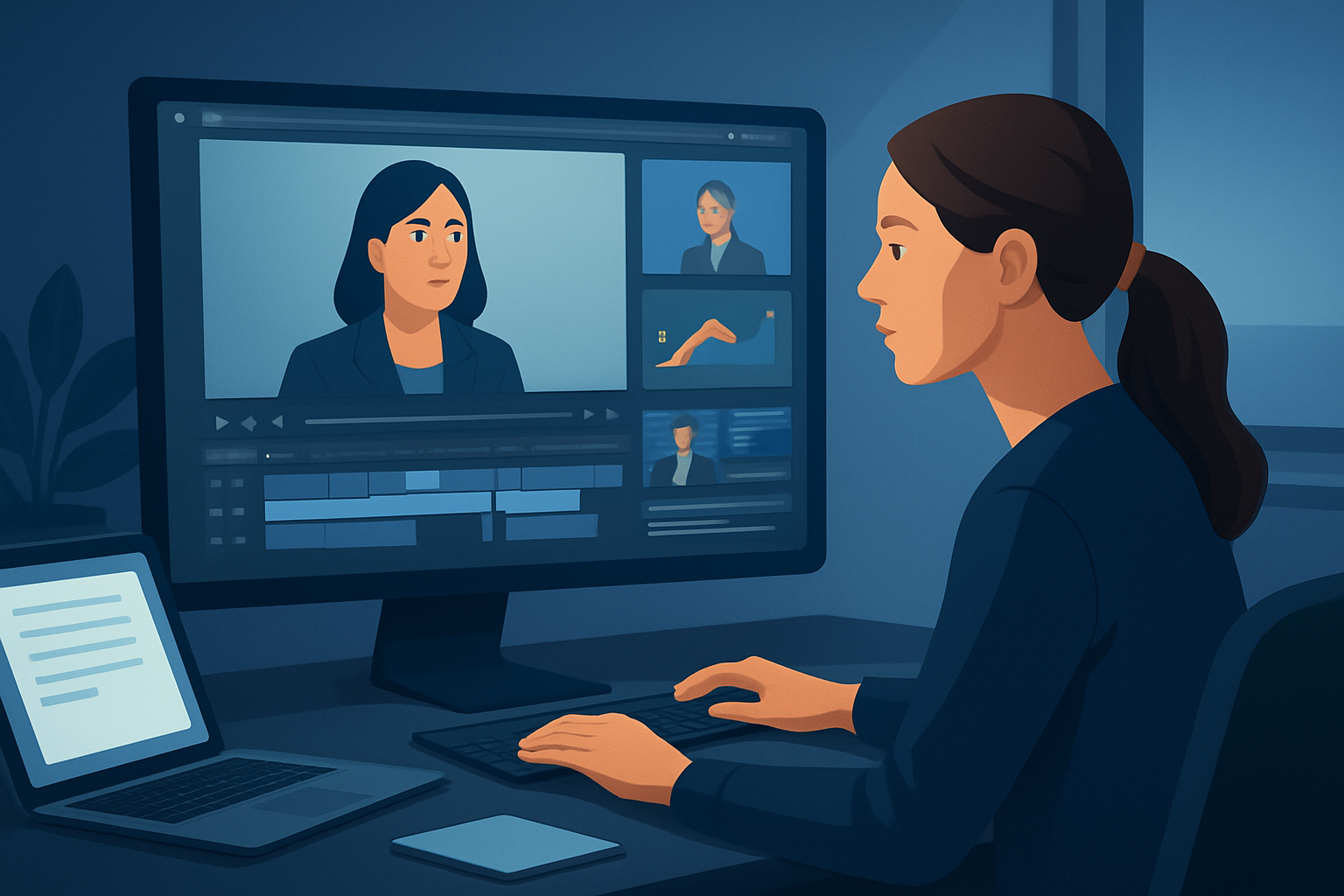

For repurposers making webinar clips for YouTube — a faster script-to-video workflow
If you repurpose webinar recordings into YouTube clips, this page is for you. You need finished, platform-ready videos (landscape uploads and Shorts) without spending hours hunting footage, cutting, and recreating brand visuals. You want repeatable outputs that preserve your webinar’s teaching moments, create attention-grabbing hooks, and publish faster. This is the text-to-video and repurposing workflow that gets you there this week.
Why webinar-to-YouTube repurposing needs this workflow now
- Webinars are long, dense, and full of micro-lessons that perform well as short YouTube clips — but raw webinars aren’t YouTube-ready.
- YouTube Shorts and standard uploads require different aspect ratios, thumbnail assets, subtitles, and title hooks. Doing all of that across many clips multiplies work.
- Audiences expect quick hooks, captions, and consistent branding. Recreating those elements manually for every clip slows output and kills scale.
A workflow that converts scripts or highlighted moments into publish-ready videos with reusable assets, subtitles, and thumbnails compresses production and increases upload cadence.
Common platform bottlenecks repurposers face
- Finding the best 30–90 second teaching moment inside 60–120 minute recordings.
- Creating consistent visual identity for clips from multiple webinars.
- Delivering Shorts (portrait) and long-form (landscape) without separate toolchains.
- Generating captions, title hooks, and thumbnails fast enough to publish at scale.
- Switching between transcription, editing, captioning, and thumbnail tools.
Solve those and you turn a single webinar into dozens of consistent, publishable YouTube assets.
Practical workflow you can implement this week (step-by-step)
- Pick one webinar and ingest it
- Import the webinar recording into your local project workspace. If the webinar already exists on YouTube, download it into your local asset library first to avoid second-guessing footage sources.
- Create a clip list
- Scan the transcript or run a quick listen for 6–10 teachable micro-moments (30–90 sec each). Note timestamps and write one-sentence hooks for each.
- Choose clip type: footage-first or script-first
- For direct repurposing, use a footage-first Auto Edit workflow to auto-generate edits from your timestamps.
- For reworked messaging (short explainer or faceless summary), use Text-to-Video: paste your short script, upload any voiceover or use voice selection, and add style reference images to keep visual identity consistent.
- Batch-edit basic polish
- Apply subtitle templates, title hooks, and a consistent overlay/border. Use auto-zoom or face tracking for presenter clips to make frames more dynamic.
- Produce platform variants
- Preview and export the same clip in landscape (YouTube), portrait (Shorts), and square for cross-posting. Tweak hook placement and subtitles per ratio.
- Generate thumbnails and assets
- Use the project’s thumbnail generation for consistent thumbnails. Reuse the same color, font, and title hooks across the batch.
- Export and publish
- Export final assets and metadata. Keep the project in your local library so you can repeat the process for the next webinar without rebuilding style elements.
This entire loop—selecting moments, turning scripts into clips, adding subtitles and thumbnails—can be compressed into repeated batches once you standardize the script and hook templates.
Best tool criteria for webinar-to-YouTube repurposing (and where Shorz fits)
Pick a tool that supports:
- Workflow compression: move from source to publish-ready inside a single persistent workspace.
- Mixed entry points: start from footage (Auto Edit) or scripts (Text-to-Video) without switching apps.
- Local asset persistence: store source recordings, thumbnails, and reusable templates on your machine for repeatability.
- Script-led features: typed scripts, uploaded speech audio, voice selection, and narration preview.
- Publishing-adjacent outputs: subtitle systems, thumbnail generation, platform ratio previews (landscape/portrait/square), and creator-style overlays.
- Repeatable visual identity: style reference images and reusable branding assets.
Shorz meets these criteria. It’s a Windows desktop AI video production suite that combines Auto Edit Video, Text-to-Video, Avatar, and Podcast project types in one persistent workspace. That means you can import webinar footage, run a footage-first repurpose pass, or build scripted, faceless explainers from typed scripts — all while reusing the same asset library, subtitle templates, and thumbnail outputs.
Where Shorz fits into your stack and workflow
- Source management: Bring webinar recordings into the Shorz asset library (or download from YouTube URLs into the project).
- Clip construction: Use Auto Edit Video to turn recorded sections into edited clips, or use Text-to-Video to generate script-based clips with uploaded narration or selected voices.
- Finishing and packaging: Apply subtitles, title hooks, overlays, and visual polish (auto zoom, face tracking, freeze frames) and preview in YouTube/Shorts ratios before export.
- Asset reuse: Keep thumbnails, hook templates, and B-roll in the local library so every webinar batch looks consistent without rebuilding the brand layer.
- Export: Produce platform-ready files (landscape and portrait) and thumbnails from the same project.
Shorz compresses the loop between "raw webinar" and "publish-ready clip" so you spend less time tool-switching and more time batching output.
Quick tips to scale output without losing quality
- Create a single subtitle and hook template per show format and reuse it across webinar batches.
- Use style reference images when generating Text-to-Video scenes to stabilize look and preserve brand identity.
- Batch the same step across all clips (e.g., add subtitles to all clips at once) rather than finishing clips one-by-one.
- Keep a persistent local asset library for thumbnails and B-roll so you never reinvent visual assets.
For platform-specific adaptations and shorter-form networks, see related guides: Text to Video for TikTok Creators, Text to Video for Instagram Creators, Text to Video for LinkedIn Creators.
FAQ — for repurposers turning webinars into YouTube clips
Q: Should I use Auto Edit Video or Text-to-Video for webinar clips? A: Use Auto Edit Video when you want footage-first, quick edits from recorded webinars. Use Text-to-Video when you’re creating faceless explainers or rewriting a moment into a tightly scripted clip with generated visuals and narration.
Q: Can I keep consistent branding across dozens of clips? A: Yes. Store overlays, title hooks, style reference images, and thumbnail templates in the local asset library and apply them across projects.
Q: How do I handle captions and subtitles for YouTube? A: Add subtitles using Shorz’s subtitle design layer. Batch-apply your subtitle style and export captioned files or burned-in subtitles as needed for YouTube or Shorts.
Q: Can I use my own voiceovers or choose a generated voice? A: Shorz supports uploaded speech audio and voice selection for script-driven workflows, plus narration preview before you commit to renders.
Q: Will I need separate tools to make thumbnails and platform variants? A: No. Shorz includes thumbnail generation and previews in landscape, portrait, and square so you can produce multi-ratio outputs from the same project.
Q: Are assets stored in the cloud? A: Projects and assets are stored locally inside the Shorz workspace, which supports repeat work and reusable libraries.
Ready to turn webinar scripts and highlights into publish-ready YouTube clips?
Start compressing your webinar-to-YouTube workflow now. Learn the complete script-to-video process and move from script to finished upload faster: Script to Video: Complete Guide


