
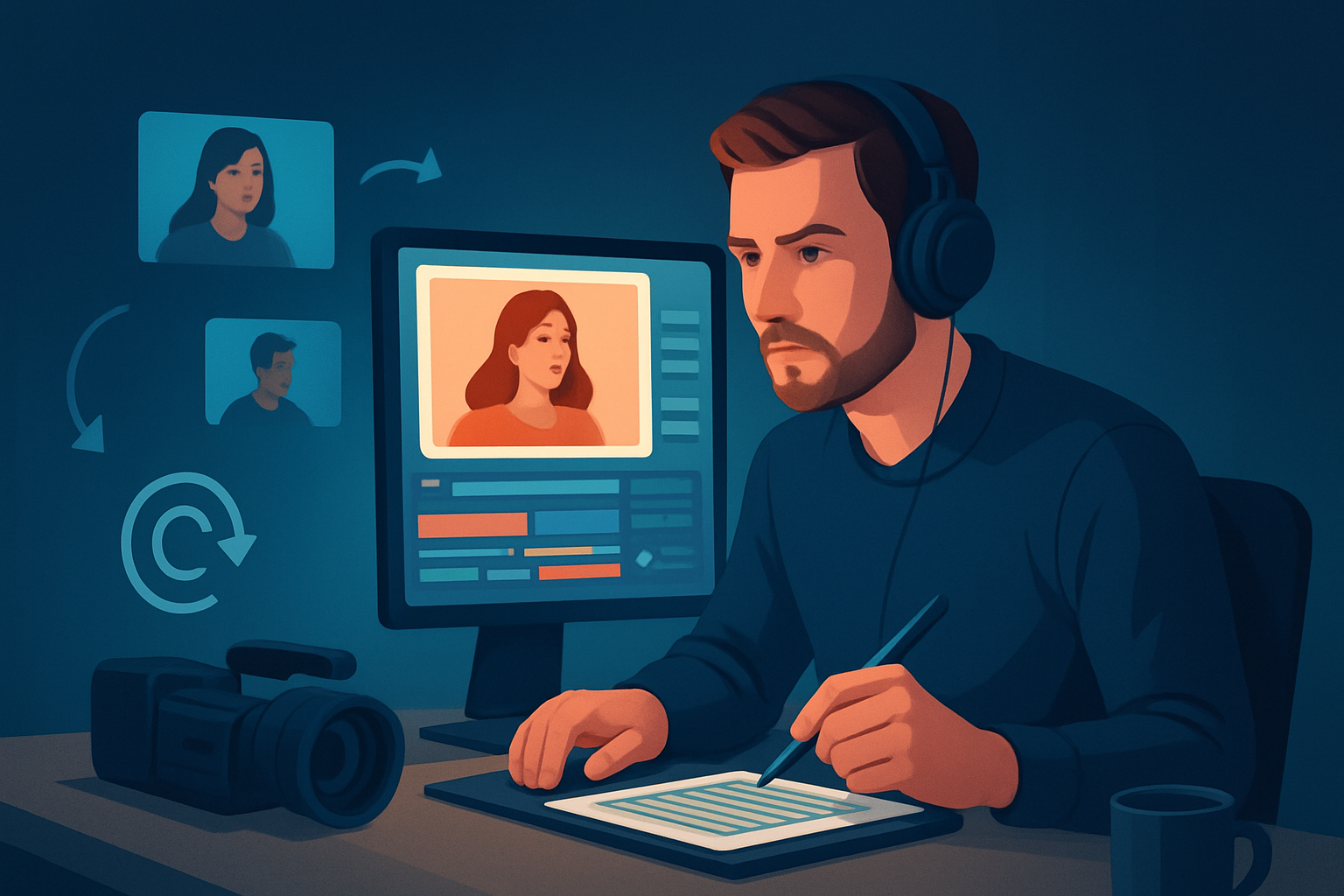

For YouTube creators who want more from one recording
You’re a creator making long-form videos, interviews, tutorials, or livestreams on YouTube and you need to turn one recording into a steady stream of clips, shorts, thumbnails, and social assets. The bad news: editing, captioning, reframing, and thumbnail work eat up hours and force you to juggle several apps. The good news: a footage-first, repeatable repurposing workflow shortens that loop and increases output without doubling your workload.
This page is for YouTube video creators who want to squeeze more assets from every recording—faster, with fewer tools, and with a repeatable system you can run weekly.
Why YouTube creators need repurposing now
- Attention spans are shorter; Shorts and clips are the fastest path to discovery.
- YouTube rewards regular, multi-format presence (long video + clips + Shorts).
- Back catalogs of interviews, webinars, and livestreams are underused assets.
- Manual editing, captioning, and resizing are bottlenecks that slow publishing cadence.
You don’t need more ideas—you need a reliable, fast way to turn recorded sessions into platform-ready assets that match YouTube’s discovery patterns.
Quick, implementable 7-step workflow you can run this week
- Pick one long recording (podcast episode, interview, tutorial, livestream).
- Import the source into your local project workspace.
- If it’s already on YouTube or TikTok, download the source directly into your asset library.
- Run Auto Edit Video to transcribe and analyze the recording.
- Let the AI generate an edit sequence of candidate clips and suggested hooks.
- Choose 3–5 high-engagement moments (punchlines, teaching moments, founder takes).
- Mark those as outputs for different ratios: landscape for YouTube uploads, portrait for Shorts, square for Instagram.
- Apply finishing layers in the same workspace:
- Add subtitles, title hooks, auto zoom/face tracking, and quick B-roll or overlays.
- Use freeze-frame or grayscale for emphasis where needed.
- Generate thumbnails and export each clip in the required aspect ratios.
- Save thumbnails and exports to the project library for reuse.
- Build a posting pack: caption, thumbnail, timestamps, and a trimmed clip per platform. Schedule or publish.
This workflow compresses editing and finishing into one persistent workspace so you can convert one recording into multiple, publish-ready assets in a single session.
Where editing bottlenecks happen (and how to fix them)
- Transcription and clip discovery: manual scrubbing is slow. Use an analyzed transcription to surface moments.
- Multi-ratio outputs: cropping and re-editing for portrait/square kills time. Preview and export multiple ratios from the same edit.
- Captions and hooks: switching between apps for subtitle burning and title design fragments your process. Apply subtitles and title hooks inside the editor.
- Asset reuse: recreating titles, thumbnail styles, and B-roll choices each time wastes effort. Store them in a local asset library for repeat use.
Fix these by running a footage-first repurposing flow inside a workspace that keeps your assets and project history local and reusable.
Best tool criteria for YouTube creators (where Shorz fits)
When evaluating tools for this workflow, prioritize:
- Footage-first Auto Edit capabilities that move from source to a polished first draft.
- Local project storage and reusable asset libraries so presets, thumbnails, and project history are persistent.
- Built-in finishing controls: subtitles, title hooks, B-roll, overlays, auto zoom, face tracking, and basic color controls.
- Multi-aspect preview and export (landscape, portrait, square) to avoid re-editing per platform.
- Ability to import or download YouTube/TikTok source URLs into the workspace to strengthen repurposing.
Shorz meets these criteria as a Windows desktop AI video production suite focused on short-form and repurposing workflows. It combines Auto Edit Video, Text-to-Video, Avatar, and Podcast project types inside one persistent workspace. It stores projects and generated assets locally so you get repeatable output, reusable assets, and less tool switching.
How Shorz fits into your stack and workflow
- Replace the “scrub + clip” stage: use Auto Edit Video to transcribe, analyze, and assemble candidate clips from long recordings.
- Replace separate captioning and thumbnail tools: apply subtitles, title hooks, and generate thumbnails inside the same project.
- Reduce file juggling: Shorz imports existing footage and downloaded YouTube/TikTok sources into a reusable asset library, keeping everything local.
- Finish faster: the app’s AI helps create a first draft, while shared finishing systems let you polish (auto zoom, face tracking, B-roll, overlays) without moving files between apps.
Think of Shorz as the core repurposing workspace where you compress the editing loop and reuse assets for a higher publishing cadence.
Practical templates to start with (examples you can use)
- Webinar → 5 clips: run Auto Edit Video, pick teaching moments, add subtitles and title hooks, export 16:9 + 9:16.
- Interview → Quote cards + Short: extract 3 quotable lines, create a 9:16 Short with auto zoom and captioned hook, export thumbnail sets.
- Tutorial → Step clips + highlight reel: segment steps via transcript timestamps, apply freeze-frame callouts and B-roll overlays, export square clips for social.
Use these templates each week for a single long recording and you’ll produce consistent packs of assets without reinventing the edit each time.
FAQ for YouTube creators
Q: Can I repurpose livestreams and downloaded YouTube videos? A: Yes. The repurposing workflow supports importing footage and downloading source material from YouTube or TikTok URLs into the local asset library, which is ideal for livestream-to-clip workflows.
Q: Do captions and subtitles work inside the same project? A: Yes. The Auto Edit Video workflow includes transcription/analysis and supports layering subtitles and title hooks so you can export captioned clips without switching tools.
Q: Can I export for Shorts and standard YouTube uploads without re-editing? A: Yes. The workspace previews and exports in landscape, portrait, and square ratios, letting you tailor the same clip for multiple publishing contexts.
Q: Are my files stored in the cloud? A: No. Projects and generated assets are stored locally on your Windows desktop, supporting persistent project history and reusable libraries.
Q: Will I still need other editing apps? A: You may choose to use external tools for advanced color grading or enterprise workflows, but Shorz reduces the need for multiple tools by combining AI-driven first drafts with finishing controls in one persistent workspace.
Q: Is this workflow repeatable for a content calendar? A: Yes. Because assets and projects are stored locally and reusable, the workflow is designed for repeatable output and faster first drafts week after week.
Ready to turn one recording into a week of assets?
If you want to move from single recordings to consistent multi-format output—faster drafts, reusable assets, and less tool switching—start building a repeatable repurposing workflow today. Learn the full approach and see examples in our guide: Video Repurposing: Complete Guide
Explore repurposing examples for niche workflows:
- Finance creators: Video Repurposing for Finance Brands
- Real estate creators: Video Repurposing for Real Estate Brands
- Local services creators: Video Repurposing for Local Services
Get started with a single recording and publish more clips this week: Video Repurposing: Complete Guide


