
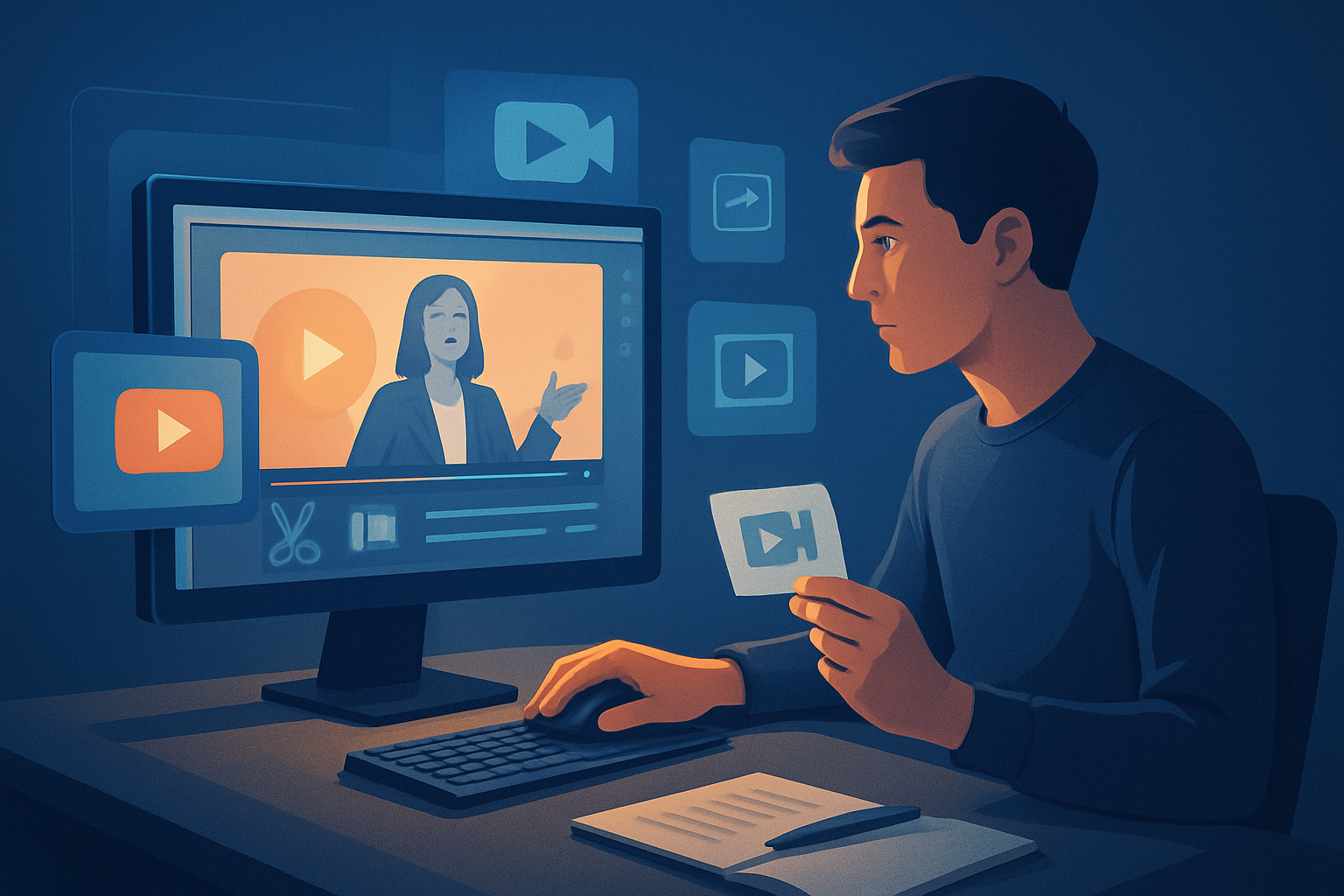

For repurposers who make videos from webinars — a practical playbook
You’re a repurposer working with video creators who run webinars. Your goal: turn one webinar recording into a week’s worth of publishable assets without the usual busywork. This page shows a focused, platform-specific workflow for webinars, why you need it now, and exactly how to get started this week using a Windows desktop AI editor built for repurposing.
Why webinar repurposing needs a dedicated workflow today
Webinars are long, dense recordings with high-value moments spread across an hour or more. The typical pain points you face:
- Sifting through hours of footage to find shareable clips.
- Producing multiple aspect ratios, subtitles, and thumbnails for platform-specific feeds.
- Repeating the same finishing work (titles, hooks, brand overlays) across dozens of clips.
- Keeping repurposed assets consistent and reusable for future campaigns.
The result: low output from high-value source material. Webinar audiences expect crisp, snackable content—so you need a repeatable, compressed workflow that turns one recording into many assets without swapping tools or rebuilding the same elements each time.
Common webinar workflow bottlenecks (and how to eliminate them)
- Finding highlights: manual scrubbing is slow. You need automated transcription and a way to generate edit instructions.
- Multi-ratio rework: editing separately for square, portrait, and landscape multiplies work.
- Repetitive finishing: subtitles, hooks, and branding applied by hand per clip.
- Asset management: thumbnails, B-roll, and music scattered across drives.
Addressing these requires a footage-first editor that keeps everything local, stores reusable assets, and moves you rapidly from source to publish-ready files.
Practical repurposing steps you can implement this week
Collect and centralize
- Export the webinar recording from your platform (Zoom, Webex, GoToWebinar, etc.).
- Download any related promotional clips or uploaded versions into one folder.
Import into a single desktop workspace
- Create a project and import the full webinar + slides + logo + music into a local asset library.
- If you need to pull previously published clips, download them from public URLs into the same library.
Auto-analyze and draft edits
- Run the footage-first Auto Edit Video workflow to transcribe and generate editing instructions.
- Let the system build an initial edit sequence that selects highlights and applies basic timing.
Create distribution-specific cuts
- From the generated sequence, output:
- Long-form highlight reel (5–10 minutes)
- Short clips (30–90 seconds) for social and ads
- Teasers (10–20 seconds) for stories or pre-roll
- Audiograms or podcast-ready audio
- Use the preview mode to check landscape, portrait, and square ratios before finalizing.
- From the generated sequence, output:
Apply finishing layers once, reuse everywhere
- Add subtitles, title hooks, and brand overlays in the project so they can be reused.
- Apply visual polish—auto zoom, face tracking, and color tweaks—selectively.
- Generate and store thumbnails alongside the video outputs.
Export and publish
- Render the assets you need for the week and move files to your scheduling or CMS tools.
- Keep the project in the local workspace so variants and future edits are repeatable.
These steps cut the usual end-to-end friction and make it realistic to produce multiple assets in a few hours rather than days.
Best tool criteria for webinar repurposing (and where Shorz fits)
When selecting a repurposing tool, prioritize:
- Footage-first editing that starts with transcription and generates edit sequences — Shorz’s Auto Edit Video workflow is designed for this pattern.
- Local project storage and reusable libraries that avoid rebuilding the same assets — Shorz stores projects and assets locally for repeatable output.
- Built-in finishing controls (subtitles, title hooks, overlays, B-roll, music, volume mixes) so you don’t bounce between apps — Shorz includes these finishing systems.
- Multi-ratio previewing to avoid re-editing for every platform — Shorz previews landscape, portrait, and square outputs.
- Visual polish options (auto zoom, face tracking, freeze frame, basic color) so clips look finished not raw — Shorz offers these polish layers.
- Thumbnail and asset generation within the same workspace so metadata and creative assets stay together — Shorz can generate, store, and reuse thumbnails and project assets.
- Ability to ingest external published footage easily — Shorz supports downloading source material from YouTube or TikTok URLs into the local asset library.
If your priority is faster first drafts, reusable assets, and less tool switching, the features above are the baseline.
Where Shorz sits in your repurposing stack
- Input: webinar platform → export recording (mp4) → import into Shorz.
- Core editing: Shorz Auto Edit Video analyzes/transcribes and builds a draft edit; use Avatar, Text-to-Video, or Podcast project types if you need additional asset types from scripts or audio.
- Finishing: apply subtitles, title hooks, B-roll, overlays, auto zoom, face tracking, and preview in multiple ratios inside Shorz.
- Asset management: keep thumbnails and generated assets stored locally in the same project for reuse.
- Output: export final cuts and push to scheduling, CMS, or platform upload tools.
Shorz is not a replacement for your publishing scheduler or CMS; it’s the workspace where you compress edit time, generate repeatable assets, and leave a persistent project history for later iterations.
FAQ — webinar-focused answers
Q: Can I batch-create short clips from a single webinar? A: Yes. Use the Auto Edit Video footage-first flow to transcribe and generate edit instructions, then create multiple short outputs from that edit sequence. The reusable asset library speeds up repetitive finishing.
Q: Will Shorz handle hour‑long webinars? A: Shorz imports long source files into projects and runs the analyze/transcribe → generate edit sequence pattern. Large files and long transcripts are supported as part of the footage-first workflow; processing time depends on file size and your machine.
Q: How do I keep branding and subtitles consistent across dozens of clips? A: Apply subtitles, title hooks, overlays, and brand assets once in the project. Shorz stores those assets locally so they can be reused across outputs and future projects.
Q: Can I make portrait and square versions without re-editing from scratch? A: Yes. Preview and adjust outputs in landscape, portrait, and square ratios in the same project so you avoid rebuilding edits for each platform.
Q: Can I reuse thumbnails and other metadata? A: Shorz can generate, store, and reuse thumbnails and other project assets alongside video outputs to keep metadata consistent.
Q: Can I repurpose recordings that are already on YouTube or TikTok? A: Yes. Shorz supports downloading source material from YouTube or TikTok URLs into the local asset library to strengthen repurposing workflows.
Next step — make one webinar deliver many assets
If your goal is consistent weekly output from webinar recordings—short clips, teasers, highlight reels, and thumbnails—start compressing your workflow today with a footage-first, local workspace that keeps assets reusable.
Get the repurposing workflow that turns one webinar into the content schedule you need. Start here: Video Repurposing Workflow for More Output
Further reading on focused repurposing strategies:
- Agency-focused playbooks: Video Repurposing for Agencies
- SaaS founder workflows: Video Repurposing for SaaS Founders
- Course creator repurposing ideas: Video Repurposing for Course Creators


