
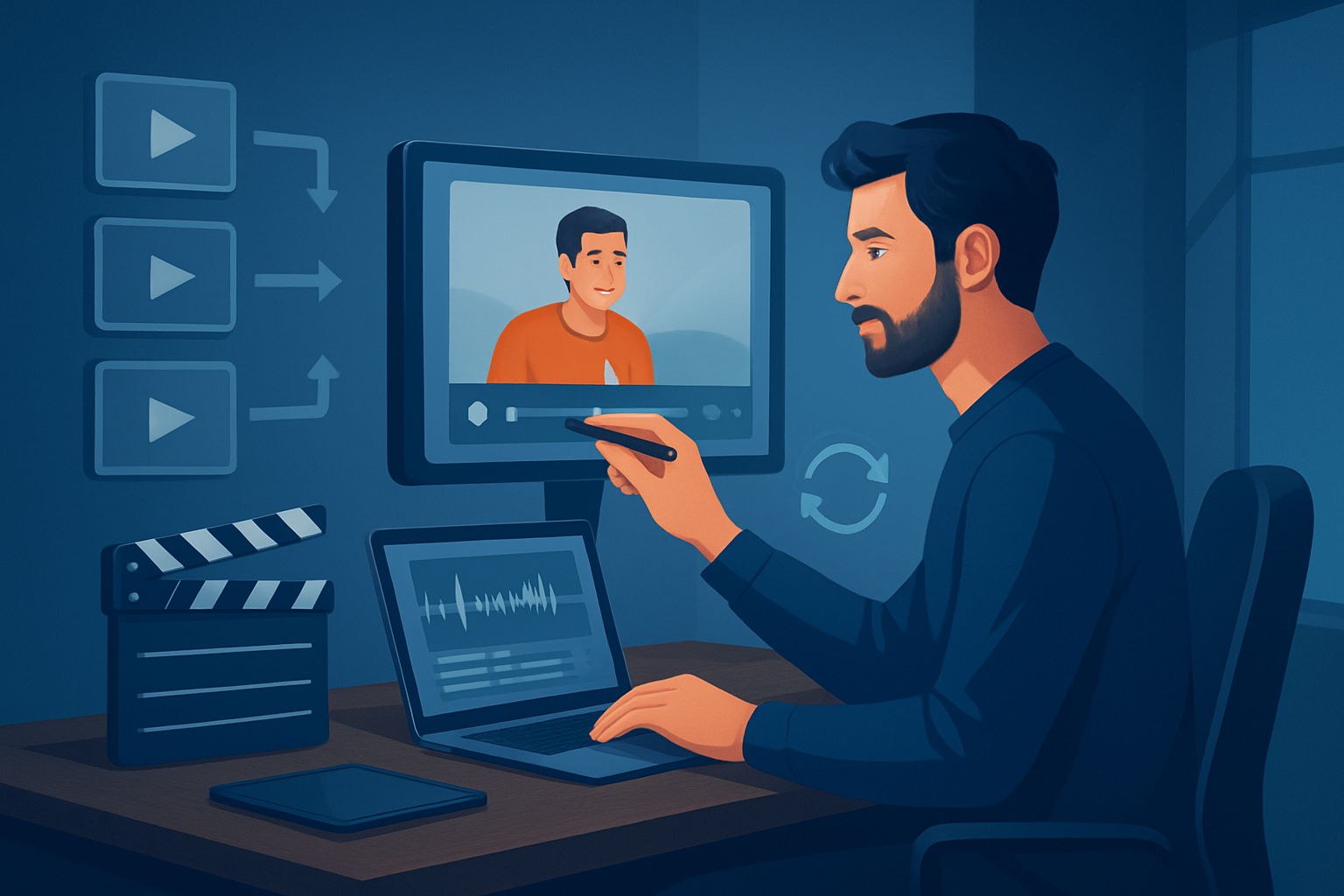

The bottleneck creators hit with repurposing
You have hours of long-form content—podcasts, webinars, interviews—but the finishing steps to turn those into consistent short-form videos are slow, repetitive, and spread across too many apps. The core bottleneck is workflow friction: manual trimming, captioning, format-switching, and recreating thumbnails every time you want a new clip. That wastes creative energy and kills output.
A repeatable, production-line workflow fixes that. Below is a practical, step-by-step system you can run weekly to turn source content into a stream of platform-ready assets.
Step-by-step video repurposing workflow for creators
Capture and collect
- Record high-quality source: webinar, interview, podcast, demo. Use one camera and a clean audio feed where possible.
- Centralize files in one folder or desktop project. If pulling published content, download clips into your workspace so you don’t juggle links.
Ingest and transcribe
- Import source into your editor/production suite and transcribe. Transcription turns timecodes into editable moments and searchable clips.
- Tag highlights during playback: great quotes, strong hooks, and teachable moments.
Auto-generate first drafts
- Use an “auto edit” pass to create short-form clips from tagged moments. Let AI propose cut points, subtitles, and title hooks so you get a fast first draft rather than starting from zero.
Polish and format
- Apply finishing layers: subtitle styling, title hooks, B-roll overlays, auto-zoom/face tracking, and mix audio levels.
- Create platform-specific aspect ratios (landscape, square, portrait) and tweak framing for each.
Create thumbnails and metadata
- Generate thumbnail options and export them alongside the video. Write optimized titles, descriptions, and tags for each platform.
Export, schedule, and store
- Render outputs for each platform. Save versions and all generated assets in your project library for reuse.
- Upload to your scheduling tool or platform and track performance.
Iterate from performance data
- Use view and engagement metrics to feed back into which moments you prioritize next. Repeat the cycle weekly.
This system compresses repetitive tasks into predictable steps so you can scale output without burning energy on manual edits.
Tools needed
- A desktop AI video editor that supports workflows and local assets (Windows recommended).
- Example: a Windows desktop suite that provides Auto Edit Video, Text-to-Video, Avatar, and Podcast project types and stores projects and assets locally.
- Recording gear: camera, mic, and simple lighting.
- A transcription engine (if not built into your editor).
- Asset store: shared folder or the editor’s local “My Assets” library for images, audio, thumbnails, and B-roll.
- Thumbnail generator or template tool.
- Scheduling platform or social uploader.
- Optional: audio editor for podcast-specific tweaks.
Shorz fits into this stack as the desktop production hub that compresses the steps above into a single persistent workspace, with Auto Edit Video for footage-first repurposing and project libraries that keep assets reusable.
Mistakes to avoid
- Skipping transcription: hard to search, tag, or subtitle without it.
- Doing one-off edits every time: no reuse = no scale.
- Ignoring aspect ratio previews: what looks good landscape can fail in portrait.
- Over-editing the first draft: prefer faster first drafts and refine once you have performance signals.
- Not saving generated assets: thumbnails, subtitles, and overlays are repeatable—store them.
Optimization tips (operator-focused)
- Hook in 3 seconds: test multiple title hooks on the same clip and measure CTR.
- Use subtitle styling templates: consistent readability improves watch-through.
- Batch similar edits: do all subtitles, then all title hooks, then all thumbnails.
- Reuse B-roll and overlay packages from your asset library to save time.
- Save export presets per platform for consistent bitrate and format.
- Keep a prioritized repurposing matrix: long-form → 3 highlight clips → 6 short-form variants → 3 social edits.
For podcast-first repurposing there’s a focused workflow to convert audio into visual clips—see Video Repurposing Workflow for Podcasts. For webinars or founder content, follow playbooks that prioritize timestamps and teaching moments: Video Repurposing Workflow for Webinars, Video Repurposing Workflow for SaaS Founders.
How to scale the workflow
- Template everything: title hook templates, subtitle styles, thumbnail frames, and B-roll packs. A template turn reduces each new clip to a 10–20 minute finish.
- Build a reuse library: store generated thumbnails, music beds, overlays, and favorite hooks in your project library so each new edit pulls from known-good assets.
- Batch source ingest: import a week’s worth of recordings at once, transcribe them in a single pass, and tag high-value moments.
- Delegate repetitive tasks: have an assistant run the auto-edit pass and apply presets, then you do the final creative pass.
- Measure and prune: keep only the templates and assets that consistently perform.
Shorz’s local persistent projects and My Assets system make these scale tactics practical—your reusable assets and cached project history stay on your workstation and simplify repeat work.
Where Shorz reduces friction
- Workflow compression: Shorz moves footage-to-publish-ready inside one persistent workspace so you spend less time switching tools and more time creating.
- Auto Edit Video: a footage-first pipeline (import → transcribe/analyze → generate edit → render) that speeds first drafts of short clips from webinars, interviews, and tutorials.
- Local asset library: store videos, images, audio, generated thumbnails, and downloaded GIFs/images for repeated reuse.
- Platform previews: preview and tweak outputs in landscape, portrait, and square without juggling separate projects.
- AI + finishing controls: Shorz combines AI generation with manual finishing (subtitles, title hooks, B-roll, auto zoom, face tracking, freeze frames, basic color tweaks, music, and sound effects) so drafts can be polished without moving to another app.
- Download sources: pull videos from YouTube or TikTok URLs into the local library to repurpose existing content without manual downloading.
- Thumbnail generation and asset reuse: generate and store thumbnails alongside rendered videos so you never recreate the same asset twice.
These features reduce the number of manual steps and the tool sprawl that typically slows creators down—faster first drafts, reusable assets, and fewer app switches.
FAQ
Q: How long does a single repurposed clip take? A: With a batched approach and templates, you can get a solid first draft in 10–20 minutes per clip and a polished final in 30–45 minutes. Using AI-assisted auto edits speeds the first-pass considerably.
Q: Can I repurpose YouTube or TikTok videos I already published? A: Yes—you can download source material into your local asset library and run the same auto-edit and repurpose pipeline on those files.
Q: Will I need cloud storage to scale? A: Not necessarily. A desktop-first workflow with local project libraries supports repeat work and cached assets; you can add cloud backup or team file-sharing as needed.
Q: Can I repurpose audio-only podcasts into video? A: Absolutely. Use podcast or audio project types to add visuals, waveforms, captions, and avatar or text-to-video overlays to create platform-ready clips.
Q: How does this workflow help agencies? A: The persistent workspace, reusable assets, and cached project patterns reduce per-project setup time and make repeat deliverables predictable.
Next step (CTA)
If you want a practical system that turns your long-form content into steady short-form output, adopt a repeatable repurposing pipeline and centralize it in a desktop production workspace. Learn a full playbook for producing more from existing content and see how this approach compresses your workflow at Video Repurposing Workflow for More Output.


