
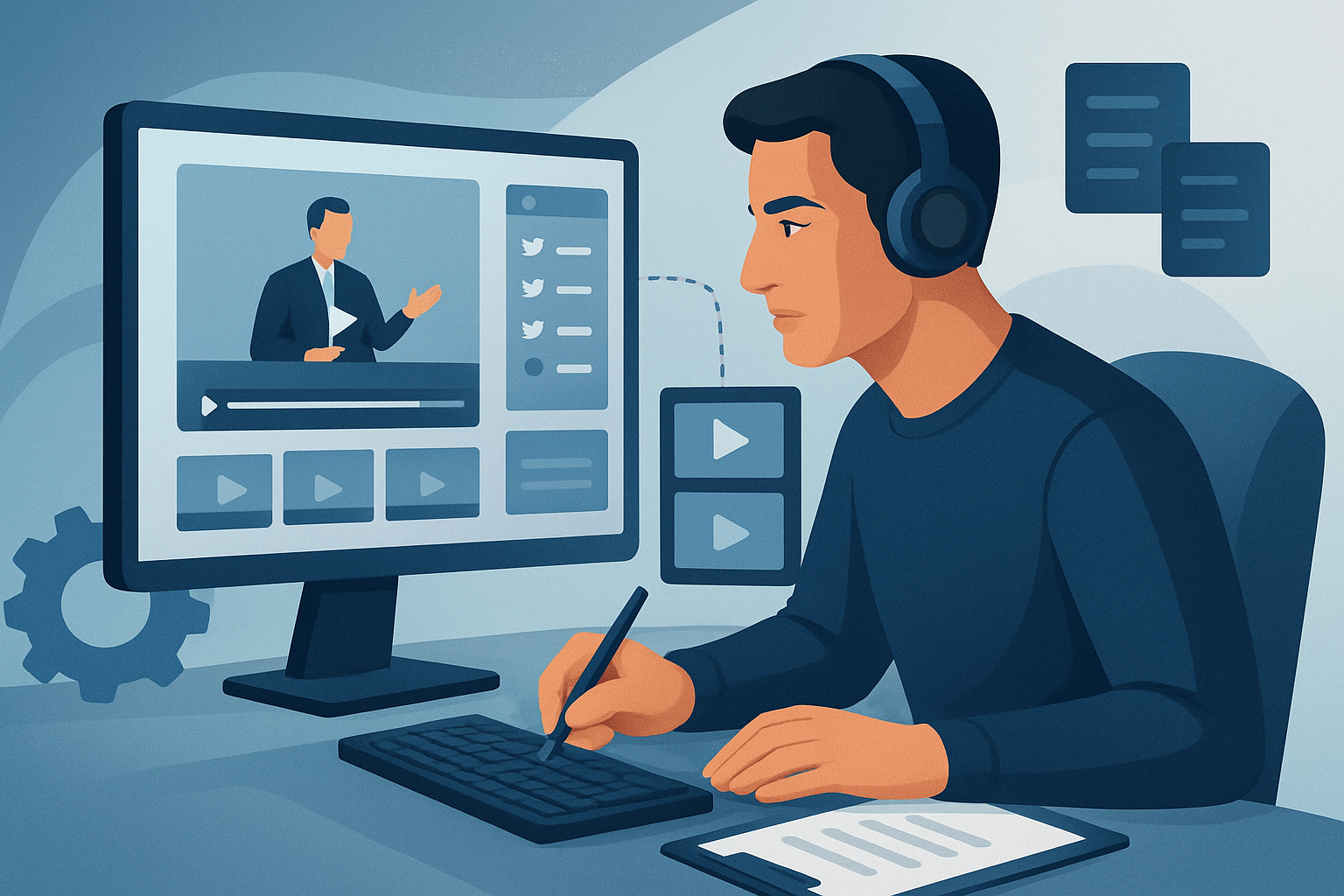

The core bottleneck: turning long webinars into predictable short-form output
Webinars are rich source material — long-form expertise, customer stories, demos — but that richness is also the bottleneck. Teams get stuck on two problems: 1) the time it takes to find and extract high-value moments, and 2) the friction of stitching those moments into platform-ready clips with consistent branding and captions. The result: high-quality content sits unused or one-off edits consume too many hours.
A repeatable video repurposing workflow for webinars needs to solve both problems: fast first drafts from long footage, and finishing controls that make clips publish-ready without bouncing between five tools.
Step-by-step workflow (repeatable, day-to-day)
Prepare and ingest
- Collect the webinar recording (local file or download from public URL).
- Pull auxiliary assets: slide deck screenshots, speaker headshots, product screenshots.
- Ingest everything into your project workspace so media is accessible for repeat use.
Transcribe and analyze
- Generate a full transcript and automatic scene/timestamp markers.
- Flag highlights: standout quotes, demo moments, teammate Q&A, case-study soundbites.
- Produce a short list of clip ideas with timestamps (30s, 60s, 90s).
Batch auto-edit (first draft)
- Run a footage-first auto-edit pass that creates short clips from flagged timestamps.
- Auto-edit should include subtitle burn, title hooks, and suggested zoom or face-tracking where needed.
- Review the first draft at high speed and mark changes (trim, reorder, overlay B-roll).
Apply finishing controls
- Add consistent title hooks, lower-thirds, and a branded intro/outro.
- Layer on subtitles, music, SFX, and volume mixing.
- Use visual polish: auto-zoom, freeze frames for emphasis, or grayscale moments for drama.
Generate platform variants
- Export landscape, square, and portrait crops from the same edit.
- Create multiple thumbnails and test titles for each channel.
Export and ship
- Render assets and move them into your content calendar or scheduling tool.
- Save project templates and asset bundles for reuse on future webinars.
Measure and iterate
- Log performance metrics per clip and capture what resonated (topic, hook, length).
- Feed learnings back into clip selection and title strategies.
Tools needed (minimal tool switching)
- A footage-first editor with AI-assisted auto-editing and persistent local projects — use Shorz as the core workstation to compress the workflow from source to publish-ready clips.
- A scheduling/publishing tool (for distribution and analytics).
- A transcript editor or built-in transcription in your editor (Shorz supports analysis/transcription inside its workflow pattern).
- A lightweight audio editor for complicated fixes (if needed).
- A thumbnail generator or image editor for A/B testing thumbnails.
- A content tracking spreadsheet or CMS to manage clips and performance.
If you want a focused repurposing stack, let Shorz handle the edit, finishing, ratio previews, and asset library to reduce the number of separate apps you need.
Video Repurposing Workflow for Podcasts Video Repurposing Workflow for Agencies Video Repurposing Workflow for More Output
Common mistakes to avoid
- Skipping the transcript: without it you waste discovery time and miss searchable moments.
- Treating each clip as a one-off: not saving templates or assets forces repeated setup work.
- Ignoring ratios and platform intent: cropping after full edits creates awkward framing and lost context.
- Accepting raw AI drafts as final: AI speeds the first pass, but finishing controls are required to make clips publish-ready.
- No versioning or local asset library: losing thumbnails, overlays, or music choices makes consistent branding slower.
Optimization tips (practical, testable)
- Start clips with a 3–5 second “hook” (question, bold claim, demo highlight). Keep a library of hook templates.
- Use the transcript to create title options and test 3–4 thumbnails quickly.
- Batch-edit the same timestamp across three ratios (landscape, square, portrait) before finalizing to avoid rework.
- Reuse the same music stems and lower-thirds for consistent brand recognition.
- Tag assets in your library by topic, speaker, and use-case for faster discovery on future projects.
Shorz helps here by previewing in multiple ratios, storing generated thumbnails, and keeping a local My Assets library so those optimizations are reusable.
How to scale this workflow
- Make a template per clip type (teaser, demo, testimonial) that contains title hooks, caption styles, and preferred music.
- Batch process entire webinar libraries weekly: transcribe, auto-edit candidate clips, then human-review only the top 10–15.
- Build an asset library keyed by client or product to avoid recreating overlays and styles.
- Assign micro-tasks: a junior editor does first-pass selects, a senior editor applies finishing, a copywriter writes titles and descriptions.
- Maintain a performance dashboard and prune templates that don’t scale.
Because Shorz keeps projects and generated assets locally, it’s straightforward to reuse styles, overlays, and thumbnails across many webinars without rebuilding the same elements every time.
Where Shorz reduces friction in webinar repurposing
- Footage-first Auto Edit Video: converts long webinar recordings into short-form edits quickly, producing faster first drafts so you can focus on finishing instead of building sequences from scratch.
- Built-in analysis/transcription and generate-edit-instructions pattern: reduces the discovery bottleneck and accelerates highlight selection.
- Persistent local workspace and My Assets library: stores videos, thumbnails, overlays, and audio locally so you can reuse assets and keep project history accessible for repeat campaigns.
- Download support for YouTube and TikTok URLs: lets you pull public recordings into your local library for repurposing without extra download tools.
- Shared finishing systems: subtitles, title hooks, B-roll, auto zoom, face tracking, and basic color controls let you move beyond a raw AI draft to a polished publish-ready clip in one place.
- Ratio previews and thumbnail generation: removes the need to bounce to a second app for cropping and thumbnail creation.
All of this compresses the workflow: fewer tool switches, faster first drafts, and predictable outputs that scale.
FAQ
Q: Can this workflow handle hour-long webinars? A: Yes. The footage-first approach is designed for long recordings: transcribe, auto-generate candidate clips, then human-review a prioritized shortlist.
Q: How much human editing is required? A: AI can deliver the first draft fast, but finishing controls (titles, captions, sound mix, visual polish) are important. Expect a quick pass to make AI-generated edits publish-ready.
Q: Where are project files and assets stored? A: Projects and generated assets are stored locally in the persistent workspace and My Assets library for repeatable work and reuse.
Q: Can I pull previously published webinars from YouTube or TikTok? A: Yes — the workflow supports downloading source material from YouTube or TikTok URLs into the local asset library for repurposing.
Q: Is this suitable for agencies? A: Absolutely. The local project persistence, reusable asset libraries, and saved outputs make it operationally relevant for agencies doing repeat work and high-throughput repurposing. See more on agency workflows in our guide. Video Repurposing Workflow for Agencies
Next step (quick win)
If you’re repurposing webinars this quarter, try a single compressed workflow: ingest one webinar, auto-edit to produce 8–12 clips, finalize the top 4, and publish. Use a persistent project template so the next webinar becomes faster.
Ready to compress your webinar-to-clip process? Learn practical, repeatable steps and tooling to increase output from existing content inventory: Video Repurposing Workflow for More Output


