
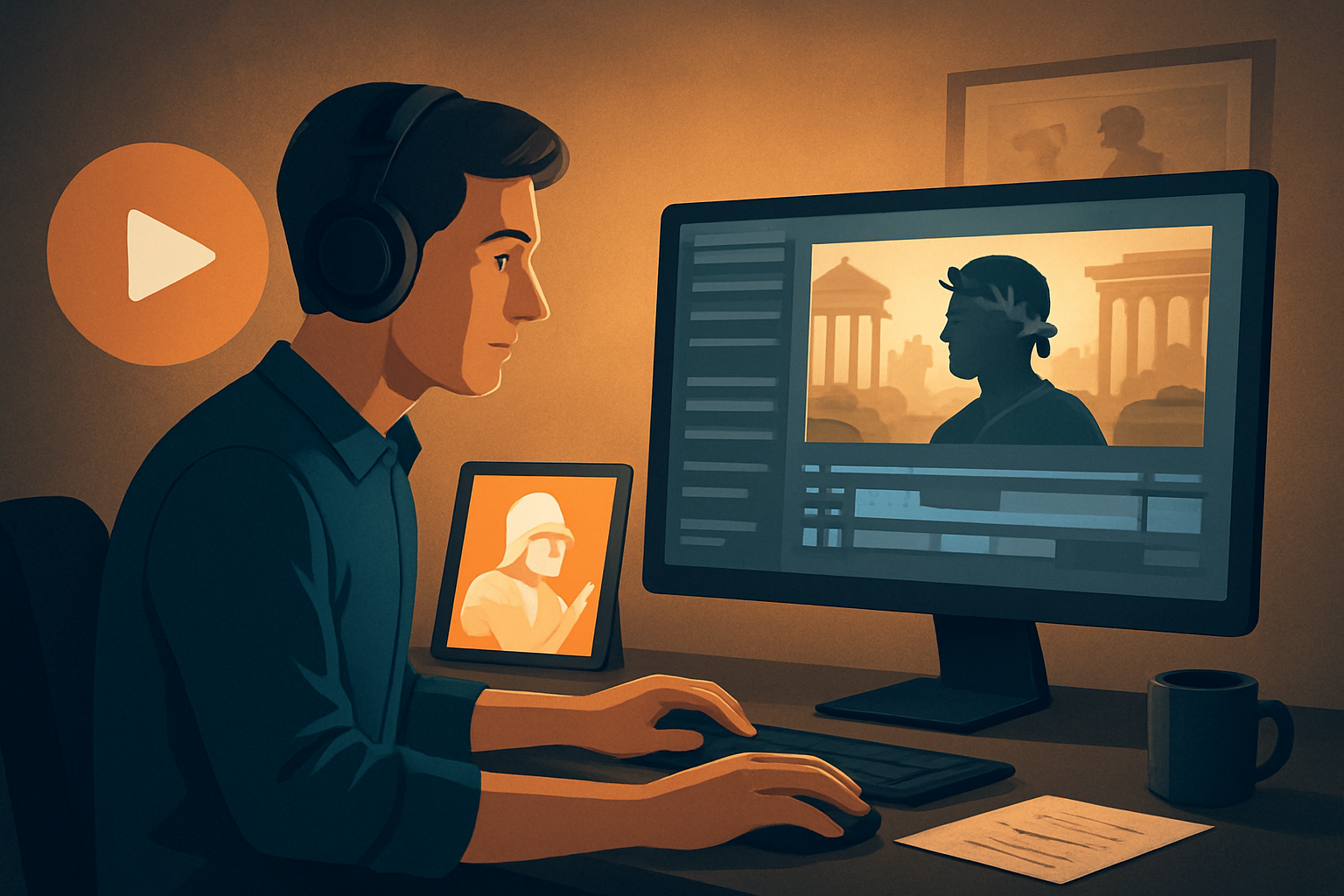

For history creators on YouTube who want more faceless output, faster
You make researched, citation-heavy videos about events, figures, and timelines. You need dependable narration, fact-accurate visuals, consistent branding, and thumbnails that get clicks — across long-form uploads and Shorts. On YouTube, that means faster first drafts, repeatable assets, and fewer tool hand-offs so you can publish more without losing quality.
This page shows a practical, non-generic workflow for history channels on YouTube that want to scale faceless content quickly — and where Shorz, a Windows desktop AI video production suite, compresses the steps that normally slow you down.
Why history channels on YouTube need this workflow now
- Audience attention is split across long-form explainer videos and Shorts. You must produce both formats without doubling work.
- Historical content is research-heavy; getting visuals and narration aligned is time-consuming.
- Thumbnails, subtitles, and title hooks directly affect discoverability and CTR — they cannot be afterthoughts.
- Faceless workflows let you scale without hiring on-camera talent or renting studios; the bottleneck becomes production speed and consistency, not idea generation.
Shorz addresses those bottlenecks by keeping scripted-to-publish steps in one persistent, local workspace and by making reusable assets standard practice.
Pain points specific to history creators (and how a workflow fixes them)
- Sourcing era-appropriate visuals for many episodes → Build and reuse a curated local asset library.
- Matching narration tone across episodes → Use typed scripts, voice selection, and uploaded speech audio to stabilize narration.
- Repurposing long videos into Shorts and clips → Preview and export in landscape, portrait, and square ratios without recreating projects.
- Thumbnail and subtitle inconsistencies → Generate and store thumbnails and subtitle assets alongside video files.
A practical workflow you can implement this week (7 steps)
Research & outline (1–2 hrs)
- Write a timestamped script with clear hooks (0:00 intro, 0:10 hook, 0:30 thesis).
- Save your style reference images (moodboard) to stabilize visual identity across episodes.
Draft narration (30–60 mins)
- Type script in your editor and record a quick narration draft or upload a polished audio file.
- Keep one preferred voice selection for series consistency.
Build the first draft in Shorz (1–2 hrs)
- Start a Text-to-Video or Auto Edit Video project depending on inputs: feed the script, narration audio, and style reference images.
- Let AI place visuals, then use the preview to check pacing.
Polish visuals and branding (30–60 mins)
- Add B-roll, overlays, borders, and title hooks from your local asset library.
- Use auto zoom, face tracking, freeze frames, and basic color controls to lift historical images or maps.
Subtitle, thumbnail, and ratios (20–40 mins)
- Generate subtitles and design a thumbnail inside the same project. Preview in landscape, portrait, and square formats for YouTube videos and Shorts.
Export and package assets (10–20 mins)
- Export required ratios and store generated thumbnails, subtitle files, and hooks in the project folder for reuse.
Upload, monitor, iterate (ongoing)
- Reuse templates and visual libraries from the project history for the next episode to cut first-draft time.
Do this once and you’ll have the skeleton of a repeatable faceless pipeline for future episodes.
Best-tool checklist for YouTube history automation (what matters)
- Script-to-video support that accepts typed scripts and uploaded narration.
- Local, reusable asset library (images, B-roll, thumbnails, subtitles) to preserve historical consistency.
- In-app finishing controls (subtitles, hooks, overlays, music, SFX) so drafts are publish-ready.
- Multi-ratio preview and export (landscape, portrait, square) for long-form and Shorts.
- Thumbnail generation and project-based asset storage to reduce tool switching.
- Storable style references so visuals remain consistent across episodes.
Shorz matches these criteria: it’s a Windows desktop tool that combines Auto Edit Video, Text-to-Video, Avatar, and Podcast project types, stores projects and generated assets locally, and focuses on finishing — not just raw first drafts.
Where Shorz fits into your stack and workflow
- Idea & research: your existing notes and citation sources.
- Script & narration: typed scripts and uploaded speech audio. Use Shorz’s Text-to-Video for script-led faceless content; pick a voice selection or upload narration.
- First draft & assembly: Auto Edit Video ingests footage and assets into a single project; Text-to-Video can generate scenes from scripts and style references.
- Finishing: subtitles, title hooks, B-roll, overlays, thumbnails, and multi-ratio preview all live in Shorz so you don’t bounce between apps.
- Asset reuse: Shorz keeps a local asset library and persistent project history for templates and consistent branding across episodes.
- Upload-ready exports: export files for YouTube long-form and Shorts, plus thumbnail images and subtitle files.
If you’re repurposing a lecture, podcast excerpt, or old footage, use the Podcast or Avatar project types to convert dialogue into faceless visual formats while keeping assets in the same workspace.
Quick example: Turn a 1,200-word script into a 6–8 minute faceless video this week
- Day 1: Draft script, collect 8–10 reference images and a map. Save them in a project folder.
- Day 2: Upload the script and one narrated audio take to Shorz Text-to-Video. Generate the first draft. Replace any AI-suggested image that’s historically inaccurate with an image from your local library.
- Day 3: Add subtitles, adjust title hooks, apply auto-zoom to portraits, generate the thumbnail, and export both 16:9 and 9:16 versions for Shorts.
Result: a publish-ready faceless episode with reusable template elements for the next topic.
FAQ — focused on YouTube history creators
Q: Can I produce faceless history videos without any existing footage? A: Yes. Use Shorz Text-to-Video with typed scripts, generated or uploaded images, and narration audio. Style reference images stabilize visual identity across generated scenes.
Q: How do I keep historical accuracy when AI suggests visuals? A: Treat AI visuals as a draft. Replace or augment suggested images with vetted assets from your local library before finalizing. Shorz’s asset library and style references make it easy to enforce accuracy and consistency.
Q: Can I output both long-form YouTube videos and Shorts from the same project? A: Yes. Shorz previews and exports in landscape, portrait, and square ratios so you can produce both formats from the same project file and asset set.
Q: How do I scale a series without losing the channel’s look and tone? A: Save templates (title hooks, subtitle styles, thumbnail templates, voice selection) within the same persistent project history and local library — then reuse them for future episodes.
Q: Do I need separate tools for thumbnails and subtitles? A: Not necessarily. Shorz supports thumbnail generation and subtitle design inside the same workspace, reducing tool switching.
Next step (clear CTA)
If you’re ready to scale faceless history videos on YouTube with a repeatable script-to-publish workflow, explore practical templates and a step-by-step faceless workflow built around this approach: Faceless YouTube Workflow With Shorz
For comparisons and inspiration from adjacent niches, see how automation workflows differ for education and science channels: YouTube Automation for Education Channels YouTube Automation for Science Channels.


