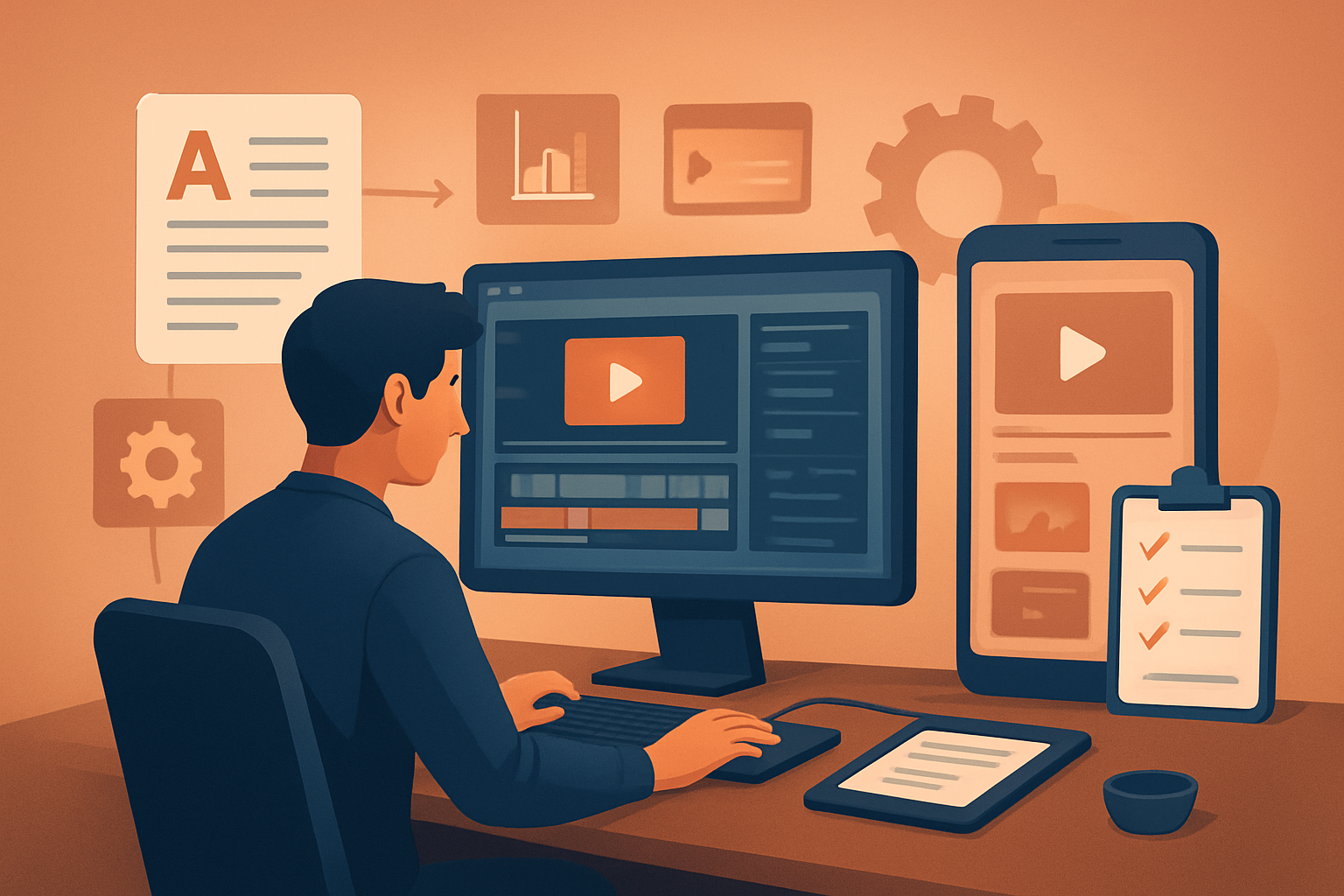

The core bottleneck for education channels
Most education creators hit the same choke point: turning researched content and a script into multiple, publish-ready video formats without losing consistency or spending hours in different apps. You need repeatable lessons, clean narration, on-screen visuals, subtitles, and thumbnails — and you need them in landscape, portrait, and square for YouTube, Shorts, and socials. The two main time sinks are tool switching and manual finishing (hooks, subtitles, thumbnails). The solution is a system that compresses the workflow from draft to publish-ready with reusable assets and templates.
A step-by-step YouTube automation workflow for education channels
Research & define the lesson
- Pick a topic, gather sources, and extract 3–5 clear learning objectives.
- Capture a short keyword list and one target search intent (e.g., “how to solve X problem”).
Outline and script
- Write a tight script: hook (5–7s), 2–4 core points, visual cue lines, and CTA.
- Include explicit edit notes for where diagrams, slides, or B-roll should appear.
Batch narration or TTS
- Record a single batch of narration or generate voice using a consistent TTS voice.
- Export clean audio per lesson for easy reuse.
Build the first draft (script-to-video)
- Load your script and assets into a single editor to auto-generate a draft video.
- Insert style reference images so generated scenes keep a consistent visual identity.
Finish and polish
- Add title hooks, on-screen text (subtitles), B-roll, overlays, and transitions.
- Apply visual polish (auto-zoom, freeze-frames, color tweaks) and mix audio levels.
Create thumbnails and packaging assets
- Generate thumbnails tied to the lesson template and export social-sized variants.
- Produce short promos or highlight clips for Shorts/Reels.
Export multiple ratios and schedule
- Preview and export landscape, portrait, and square versions.
- Upload or queue to your scheduler with platform-optimized titles, chapters, and tags.
Measure and iterate
- Review retention and search performance; fold winning templates and hooks back into the system.
Tools you need (where Shorz fits)
- Research & SEO: keyword tool, notes app, and a short CMS for outlines.
- Script & voice: writing app + mic for batch recording, or a TTS engine if you prefer generated narration.
- Video production (single workspace option): Shorz — a Windows desktop AI video production suite that supports Auto Edit Video, Text-to-Video, Avatar, and Podcast project types. Use it to move from scripts and source footage to publish-ready outputs faster with a persistent local project workspace.
- Asset storage: a local or network drive and a tool that supports reusable asset libraries (Shorz’s My Assets stores videos, images, thumbnails, audio, and downloaded media).
- Scheduling & upload: a scheduler or YouTube’s native uploader for publishing cadence.
If you’d like another example workflow tuned for scripted creators, see YouTube Automation Workflow for Script-Based Channels. For business-focused instruction channels, check this guide: YouTube Automation Workflow for Business Channels. For documentary-style or long-form education approaches, see YouTube Automation Workflow for Documentary Channels.
Common mistakes to avoid
- Skipping finishing controls: a raw AI draft without subtitle styling, hooks, or audio mixing looks amateur.
- One-off assets: not creating reusable templates for titles, thumbnails, and overlays slows scaling.
- Ignoring aspect ratios: only exporting landscape and then manually cropping later wastes time.
- Over-relying on auto-generated visuals: use generated scenes as a fast first draft, then apply finishing touches.
- Publishing without a repeatable checklist: every lesson should pass the same QA (subtitles, thumbnail, CTA).
Optimization tips for education creators
- Lead with learning outcomes in the first 7 seconds; viewers decide fast.
- Use consistent visual references so your videos keep a recognizable look across lessons.
- Always produce subtitles — they boost watch time and retention on YouTube.
- Create thumbnail templates and A/B test small changes (text size, face/emoji placement, color).
- Keep chapters or timestamps in the description for long lessons to improve findability and UX.
- Repurpose top-performing long-form lessons into 30–60s highlight clips for Shorts.
How to scale the workflow
- Batch production: write multiple scripts, record narration in one session, then generate video drafts in a single pass.
- Template-driven assets: maintain reusable title hooks, subtitle styles, thumbnail templates, and motion presets.
- Persistent asset libraries: store slides, diagrams, and B-roll in a local library so every new lesson pulls from the same set.
- SOPs and checklists: define content gates (SEO check, subtitle pass, thumbnail QA) and automate where possible.
- Team handoffs: use consistent project files and exported assets so editors or producers can pick up work without redoing steps.
Shorz’s persistent workspace and My Assets system make reusable libraries and repeatable project history practical at scale — ideal when you’re producing series-style educational content.
Where Shorz reduces friction in this workflow
- Faster first drafts: Text-to-Video and Auto Edit Video let you turn scripts and footage into assembled drafts quickly.
- One persistent workspace: projects and generated assets are stored locally in a single environment, reducing tool switching.
- Reusable asset library: My Assets keeps images, audio, generated thumbnails, and video assets ready for repeat use.
- Finishing controls inside the editor: subtitles, title hooks, B-roll, overlays, auto-zoom, face tracking, freeze frames, and basic color controls let you move draft-to-finish without exporting to a dozen apps.
- Multiple-ratio previews and export: preview and export landscape, portrait, and square outputs from the same project for YouTube and Shorts.
- Thumbnail generation and social packaging: generate and store thumbnails and social-ready assets alongside video outputs.
- Publish helpers and ingestion: YouTube and TikTok helpers plus URL-based ingestion into the local asset library streamline bringing source content into the workflow.
All of the above positions Shorz as a publish-ready, workflow-compression tool rather than only a raw generator — particularly useful for faceless or script-led educational workflows. If you want a deep dive into faceless workflows with these capabilities, see Faceless YouTube Workflow With Shorz.
FAQ
Q: Can I produce faceless educational videos with this system? A: Yes. Use Text-to-Video or Avatar project types to create faceless explainers, and keep visuals consistent with style reference images.
Q: Are projects and assets stored centrally? A: Projects and generated assets are stored locally in the workspace. That persistence supports reusable libraries and cached project history.
Q: Do I need separate tools for subtitles, thumbnails, and multiple ratios? A: If you use a single production suite that supports finishing controls and multi-ratio previews, you can avoid much of the tool sprawl — speeding up drafts and repeatability.
Q: Is this workflow suitable for agencies or teams? A: Yes — the persistent local projects and reusable asset libraries support repeat work and faster handoffs, though projects live on the workstation rather than a cloud collaboration layer.
Q: What’s the fastest way to scale output volume? A: Batch scripts and narration, standardize templates, and build a reusable asset library. Use a toolchain that compresses draft-to-finish steps so each lesson needs fewer manual passes.
CTA
Ready to build a repeatable, faceless education channel workflow that turns scripts into publish-ready videos faster? Learn how to apply this system and use a persistent workstation to scale production: Faceless YouTube Workflow With Shorz.