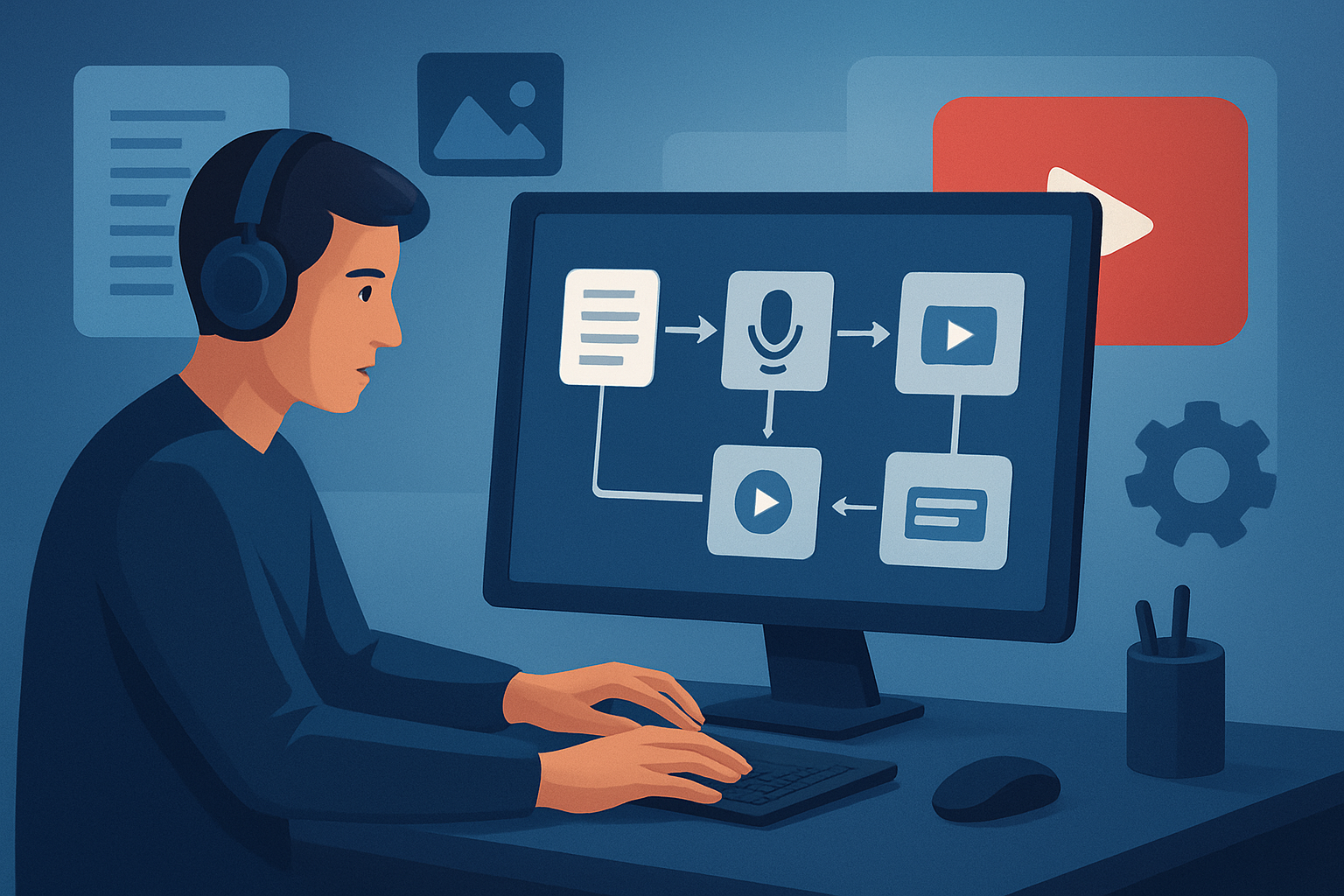

The core bottleneck for script-based YouTube automation
Creators who run script-led channels — narrated explainers, listicles, educational shorts, faceless storytelling — hit the same bottleneck: moving from a finished script to a publish-ready video quickly and consistently. Research, writing, voice, visuals, subtitles, thumbnail, and export all live in different tools. The result is slow cycles, inconsistent branding, and lost momentum.
The right workflow removes handoffs, enforces templates, and makes repeatable outputs the default. Below is a practical, step-by-step YouTube automation workflow built for scripted channels that prioritizes throughput, consistency, and scale.
Step-by-step workflow
Ideation & topic validation
- Capture 10–20 topic ideas in a shared doc. Prioritize by search intent, watch-time keywords, and simple contestability (can the idea be explained in 3–6 minutes or as a short?).
- Save headline options and a 1-line hook for each idea — this becomes your title + lead for thumbnails.
Scriptwriting (SEO-aware)
- Write a tight script with a 3–7 second hook, 2–3 key points, and a clear CTA.
- Add timing notes and where you expect B-roll or on-screen text. Keep sentences short for narration.
- Store scripts in a versioned folder so you can reuse or adapt later.
Narration / voice
- Record batch voiceovers for multiple scripts in one session, or generate narration via uploaded speech audio or chosen voice selection inside your editor where available.
- Name and store audio files in a reusable library.
Asset collection
- Pull images, stock clips, logos, GIFs, and reference style images into one project library. Use style references to match visual identity across videos.
- Save thumbnail elements (logo, font choices, face crops) as assets for reuse.
Assembly in the editor
- Import script and narration into a single project workspace that supports text-to-video or auto-editing flows.
- Map script sections to visuals: generated scenes, B-roll, overlays, or avatar shots.
- Generate subtitles and title hooks as a layer linked to the script timing.
Finishing and preview
- Apply brand-safe overlays, color tweaks, auto zoom or freeze frames for emphasis, and a fast volume mix pass.
- Preview in landscape, portrait, and square to confirm cross-platform fit.
- Generate and store thumbnails alongside the video output.
Export, schedule, repurpose
- Export the primary landscape deliverable for YouTube and quick crops for Shorts or Reels.
- Schedule uploads and use repurposed cuts for social snippets.
Measure and iterate
- Track retention, click-through, and comments. Feed the learning back into the next script batch.
Tools needed (practical options)
- Script editor: simple docs or a script tool to version and timestamp scripts.
- Voice recording or TTS: batch voiceover recorder or uploaded audio; some editors let you preview spoken narration.
- Shorz (Windows desktop): a single workspace to import footage, use Text-to-Video or Auto Edit project types, store reusable assets locally, generate subtitles, preview in multiple aspect ratios, and export packaged social assets.
- Stock asset libraries: images, B-roll, and sound effects.
- Thumbnail editor: Shorz can generate and store thumbnails, or use a dedicated image editor if you need pixel-level control.
- Scheduling/publishing: YouTube Studio or your scheduler of choice.
Shorz is best used during the assembly and finishing stages to compress the number of tools and reduce back-and-forth between asset folders and editors.
Common mistakes to avoid
- Over-designed first drafts: don’t polish every video before you validate topic performance. Ship a consistent template first.
- Ignoring thumbnails and hooks: the first 3–7 seconds and thumbnail matter more than a minute of polish.
- Re-creating assets each time: failing to build a reusable asset library steals time.
- Skipping aspect previews: a landscape that doesn’t crop well for Shorts wastes distribution opportunities.
- Not naming and versioning projects: you’ll lose repeatability without persistent, local project history.
Optimization tips that actually move metrics
- Templates: create a finishing template for captions, hooks, lower-thirds, and callouts. Load it for each new project.
- Batch narrations: record several voiceovers in one session to lock tone and speed.
- Style references: use the same style reference images so AI-generated scenes stay visually consistent across episodes.
- Thumbnails as first-class assets: save thumbnail components and iterate A/B tests quickly.
- Use subtitles: upload or auto-generate crisp subtitles—many viewers watch muted.
- Repurpose routinely: leverage the same project to export portrait and square cuts for Shorts and social.
For workflow patterns tailored to different channel types, see related walkthroughs: YouTube Automation Workflow for Education Channels, YouTube Automation Workflow for Business Channels, and YouTube Automation Workflow for Documentary Channels.
How to scale this workflow
- Standard Operating Procedures: write a one-page SOP for ideation, scripting, narration, assembly, and export.
- Reusable asset library: keep brand overlays, B-roll, music stems, and thumbnails in a central store.
- Templates and presets: lock finishing settings (subtitle style, border overlays, export presets).
- Batch production days: produce scripts, record narration, and assemble multiple projects in blocks.
- Delegation: hand off scripts, voice files, or final QA to a dedicated operator using the same workspace patterns.
Shorz supports scaling by letting teams reuse styles, overlays, and cached project assets inside a persistent local workspace. That reduces time spent rebuilding projects and preserves project history for repeated deliverables.
Where Shorz reduces friction in this workflow
- Fewer tool handoffs: Shorz combines Auto Edit Video, Text-to-Video, Avatar, and Podcast project types in one desktop app so you can move from script to finish inside one workspace.
- Faster first drafts and repeatable output: Text-to-Video plus the asset library help you generate consistent scenes quickly and iterate from there.
- Persistent local projects and reusable assets: My Assets stores video clips, images, thumbnails, audio, and downloaded media for direct reuse across episodes.
- Publish-ready finishing controls: subtitles, title hooks, overlays, B-roll, and thumbnail generation live in the same project so you avoid exporting/importing between apps.
- Cross-platform previews: preview landscape, portrait, and square before export to avoid multiple passes.
- Style stabilizers: save style reference images and reuse them to keep a consistent visual identity across dozens or hundreds of scripted videos.
All of the above compresses the time from script to publish and makes batching predictable.
FAQ
Q: Can this workflow support faceless channels? A: Yes. Shorz’s Text-to-Video and Avatar workflows let you build faceless explainers using scripts, generated visuals, and uploaded assets, while thumbnails and subtitles live with the project for consistent repurposing. For a focused guide, see Faceless YouTube Workflow With Shorz.
Q: Are projects stored in the cloud? A: Shorz stores projects and generated assets locally on Windows machines, which supports persistent project history and reusable libraries.
Q: Can I export for multiple aspect ratios without rebuilding? A: Yes — preview and export flows let you check landscape, portrait, and square contexts and package outputs for YouTube and Shorts.
Q: Is this workflow agency-friendly? A: The persistent workspace, reusable asset library, and saved outputs are operationally useful for agencies doing repeat work, even though Shorz is a desktop workstation rather than a cloud collaboration platform.
Bottom-line CTA
If you run a script-based or faceless YouTube channel and want to compress the path from script to publish while keeping consistent style and reusable assets, try the workflow patterns above and evaluate a centralized desktop workspace designed for repeatability. Learn more about faceless workflows and how to implement them with Shorz here: Faceless YouTube Workflow With Shorz.